無料商品リワード

This guide will walk you through the steps to set up Free Product rewards in BON Loyalty quickly and effectively.

はじめに

無料商品をリワードとして提供することは、顧客のロイヤルティを高め、リピート購入を促す優れた方法です。 ここでは、無料商品リワードの設定方法について詳しくご説明します。

無料商品リワードの設定場所と方法

Bon Loyaltyで無料商品リワードを作成するには、次の簡単な手順に従ってください。

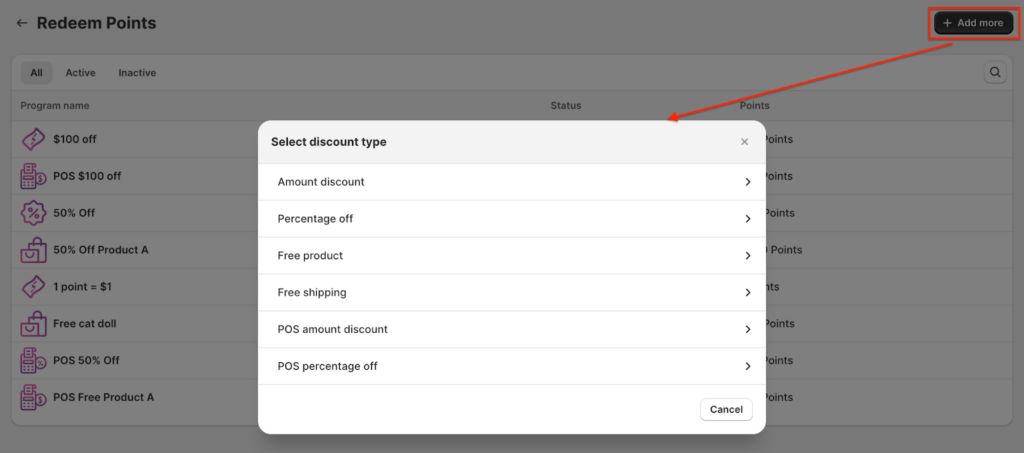
1. Navigate to BON > Point programs > ポイント交換 > Add more > 無料商品.

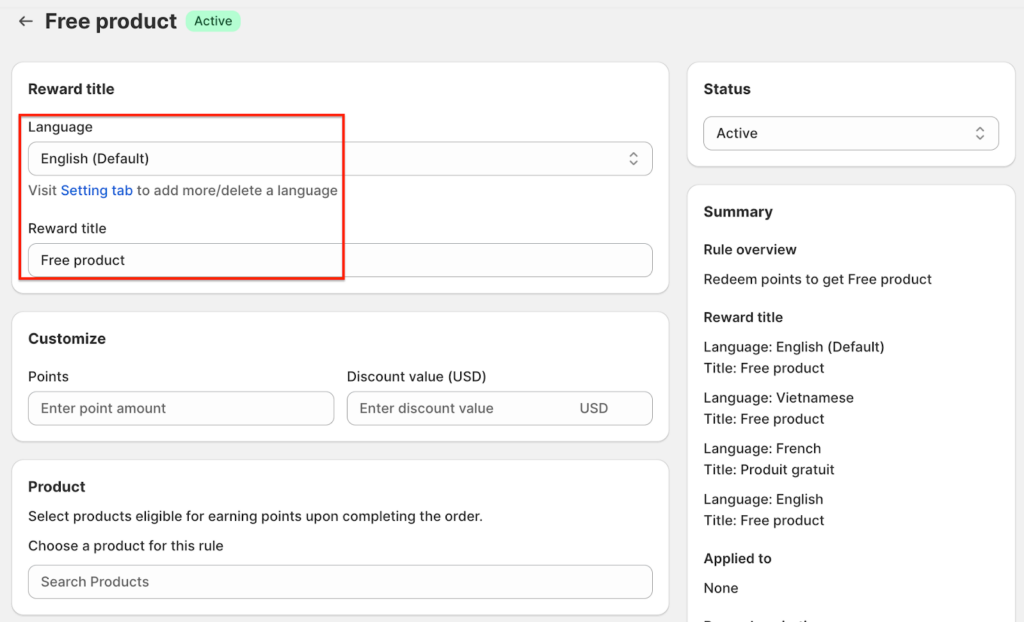
2. Enter a タイトル for the reward. This title will be visible to your customers, so make it clear and appealing.

BON Pro Tip: If your website supports multiple languages, ensure you update the title for each language. BON’s multi-language display feature is available on the Basic plan and higher.

Add more

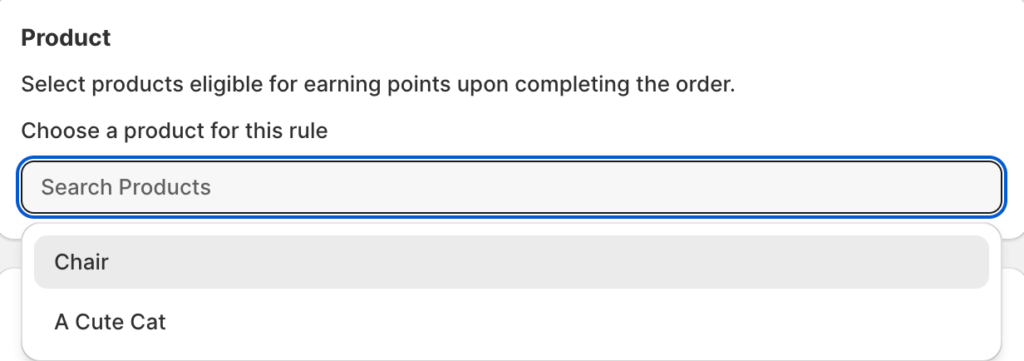
3. Choose a Product for the redemption.

Choose a product

商品バーをクリックすると、ドロップダウンメニューが表示されます。次の操作が可能です:

  • リワードとして提供する特定の商品を選択
  • 商品のすべてのバリエーションに適用する場合は「すべてのバリエーション」を選択
  • リワードに含めるバリエーションを限定する場合は「バリエーションを選択」を選択

BON NOTE: You can only select one product per Free Product reward. To offer multiple free products, go to ポイント交換 > Add more > 無料商品 and create additional rewards.

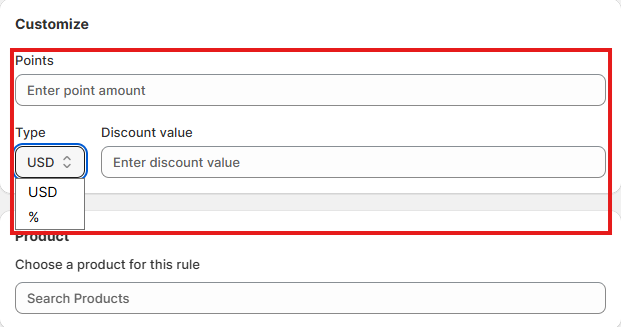
4. ポイントと割引額の交換比率を設定します。

ステップ1:提供する割引タイプを選択

  • 金額割引(USD)おすすめ
    指定した無料商品の価格から固定金額が差し引かれます。最も安全で管理しやすい方法です。

  • パーセンテージ割引(%)非推奨
    割合ベースの割引は柔軟性があります。例えば、100% と入力すると、$20でも$100でも対象商品は無料になります。重要:Shopifyではパーセンテージ割引注文内のすべての対象商品に適用されるため、不正利用のリスクが高まります。これを防ぐため、金額割引タイプの利用を強くおすすめします。

ステップ2:リワードを交換するのに必要なポイント数を設定

次のいずれかに対してリワードを設定できます:

  • 完全無料商品
    商品を完全に無料にするには、「割引額」欄に金額割引として商品の全額を入力するか、またはパーセンテージ割引として100%を入力します。
    例:商品Aが$80の場合、80(金額割引)または100(パーセンテージ割引)と入力します。

  • 一部無料商品
    一部割引を提供するには、差し引きたい金額または割合を入力します。
    例:商品Aが$100で、そのうち$40をカバーする場合は、40(金額割引)と入力します。顧客は残りの$60を支払います。パーセンテージ割引の場合は、希望する割合を入力します。

Points-to-Discount ratio

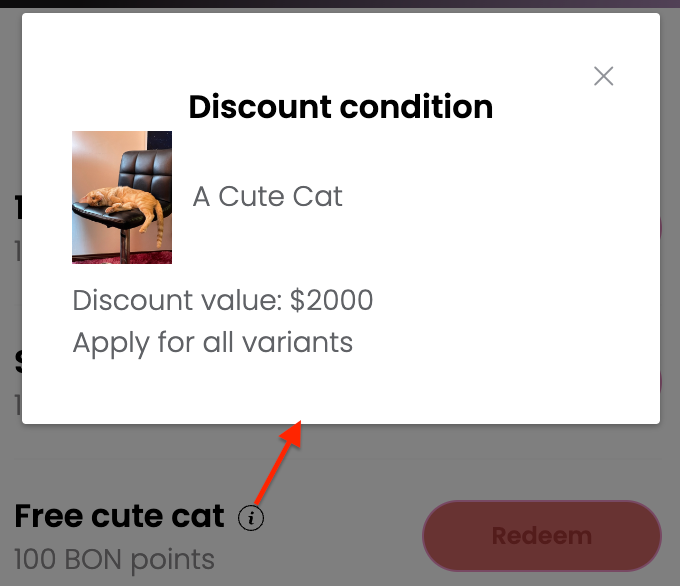
5. How will customers know which product is eligible?

On the widget, customers can click the (i) tooltip icon, and an information box will pop up showing the exact product eligible for the free product reward, the discount value, and any other applicable conditions.

Free Product info on the Widget

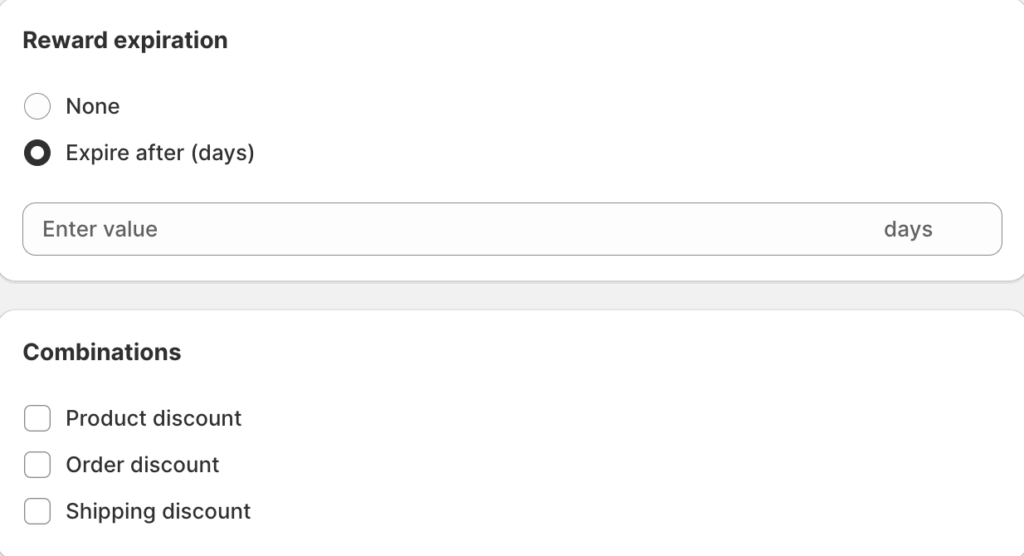
追加条件の設定(オプション)

無料商品リワードをさらにカスタマイズするには、次の条件を設定できます。

1. Reward expiration: 割引コードの有効期限を設定します。有効期限は、交換後すぐにカウントが開始されます。

例:コードはリワード交換から10日後に失効します。

2. Combinations: Enable the discount to be combined with other types of discounts. Discounts in Shopify are categorized into classes, such as:

  • 注文割引
  • 商品割引
  • 配送割引

どの割引クラスを併用できるかを確認し、適切に設定してください。

:$100の割引(注文割引)と無料商品割引を併用したい場合は、金額割引の設定で「商品割引」にチェックを入れます。次に、無料商品割引の設定で「注文割引」にチェックを入れます。両方の割引カテゴリで併用を許可する必要があり、まるでパートナーシップにおける相互同意のような仕組みです。

注意: BON triggers Shopify to create codes based on your in-app settings, so the discount combination logic is managed by Shopify. To learn more, you can visit the Shopify Discount Combinations documentation HERE.

Was this guide helpful?