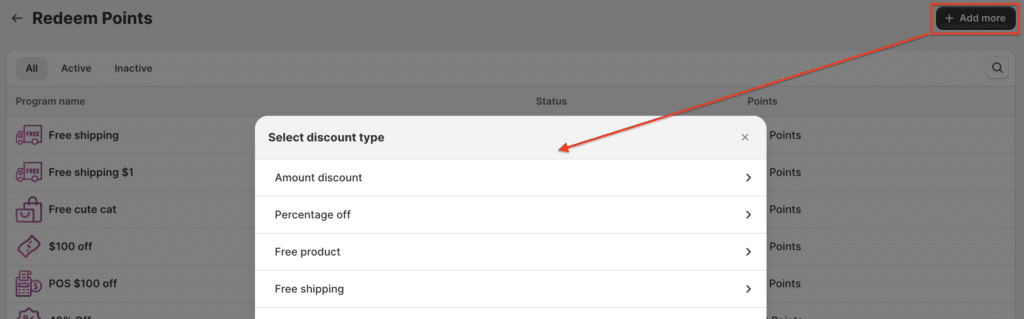
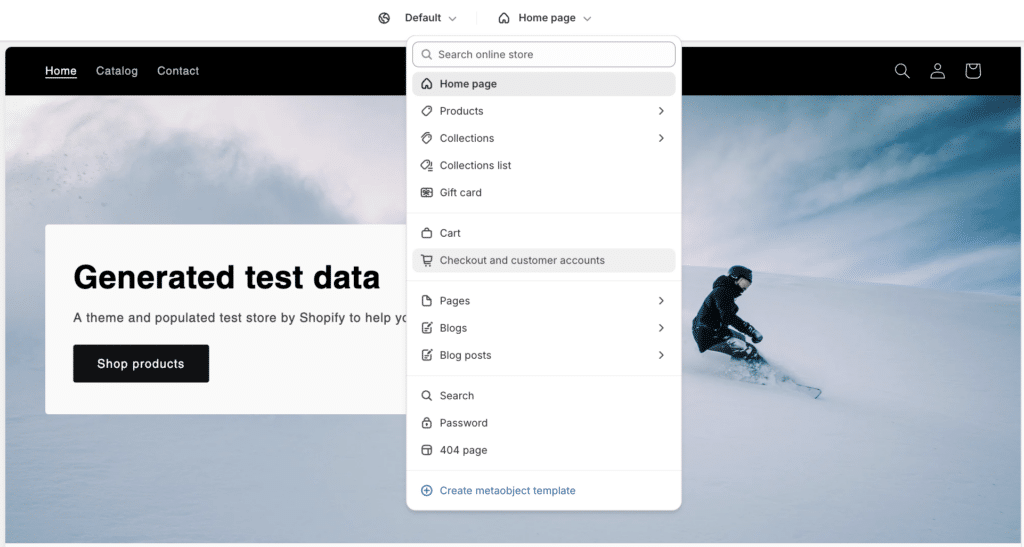
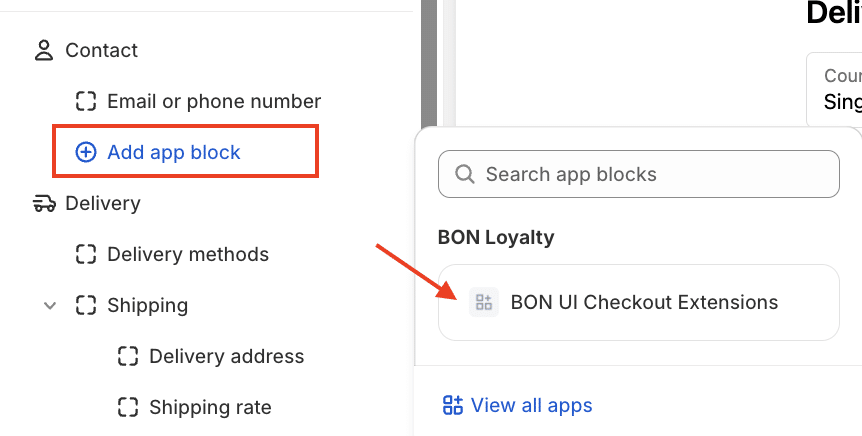
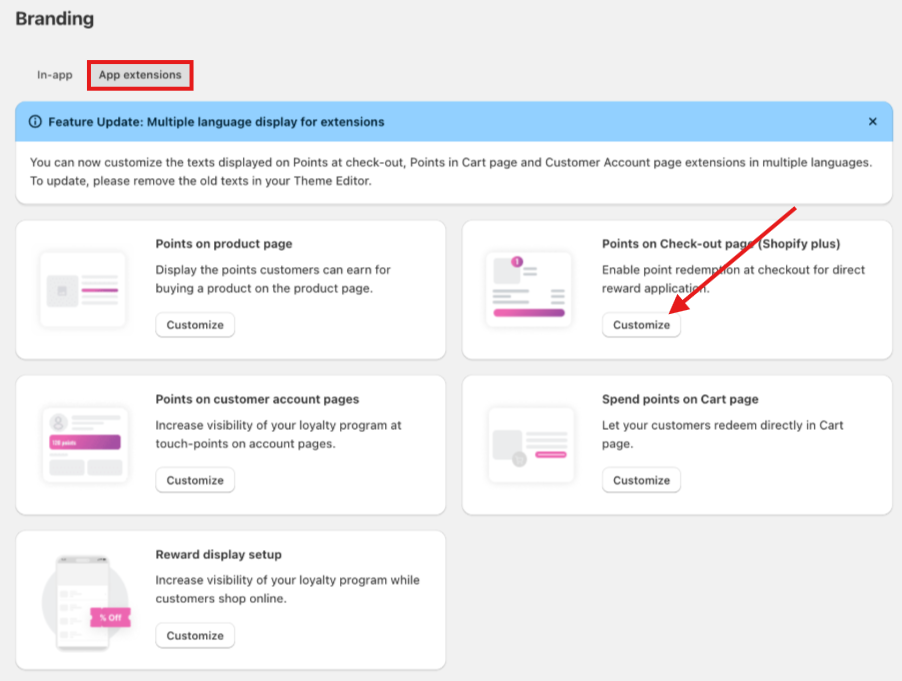
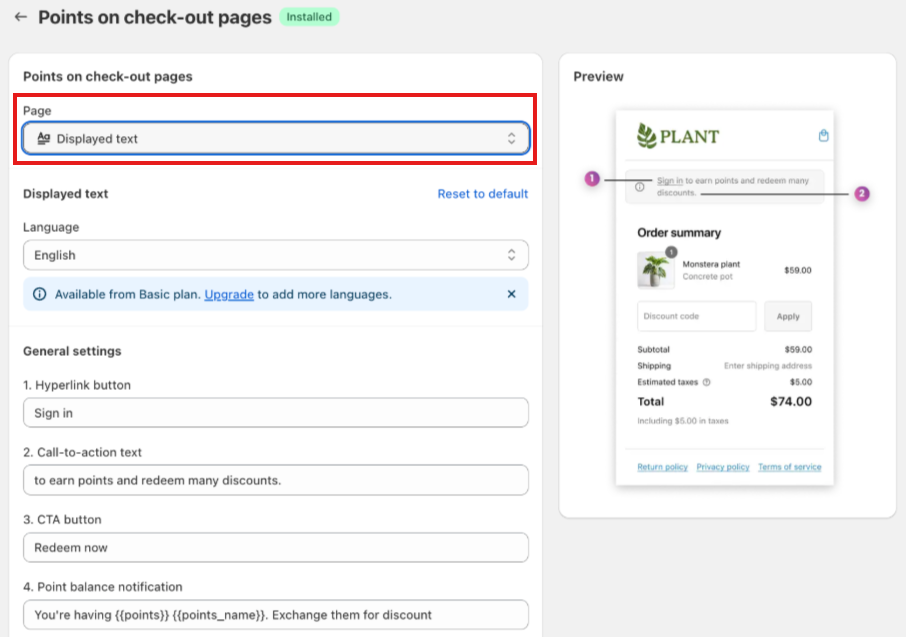
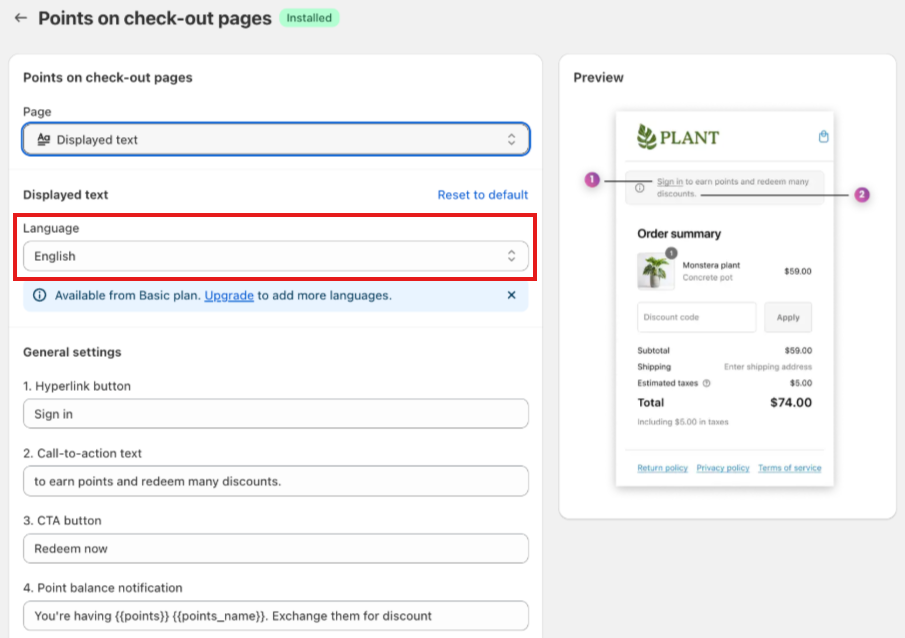
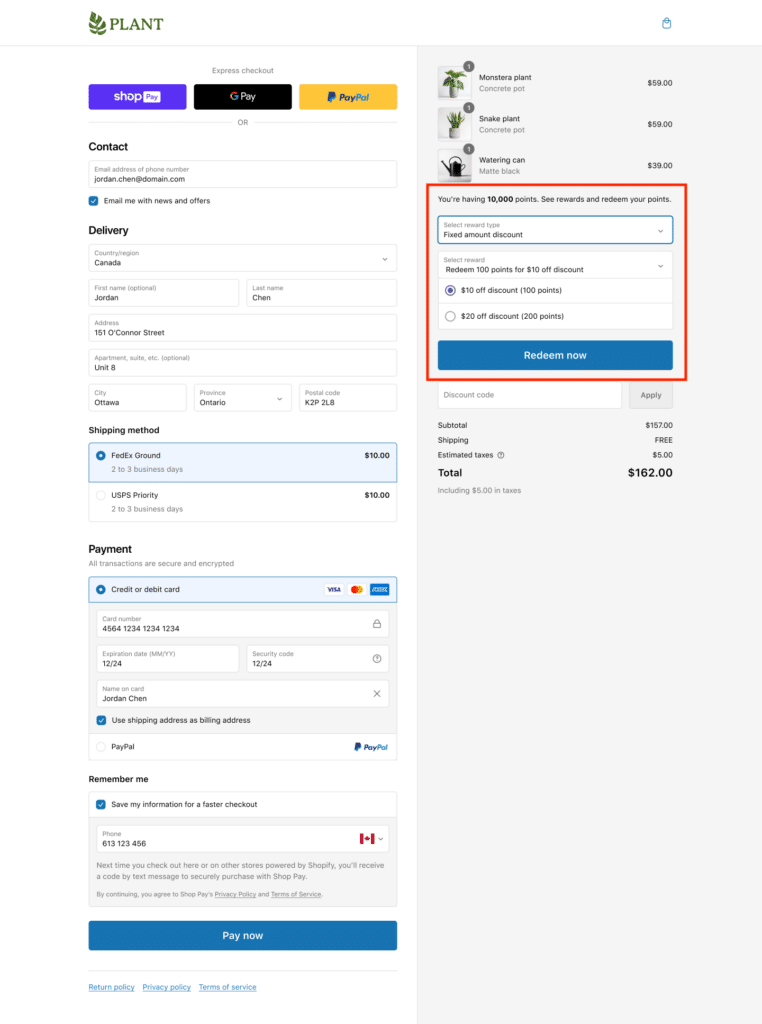
Esc チェックアウトページのポイント お客様のショッピング体験を向上させるために、Shopifyストアでチェックアウトページのポイント機能を有効にしましょう。 重要:この機能はShopify Plusストア限定です。対象のShopify Plusマーチャントは、すべてのBONプラン(Free、Basic、Growth、Professional)で利用可能です。 はじめに このドキュメントでは、BONアプリでチェックアウト時ポイント機能を有効化・利用するためのすべての手順を説明します。内容は2つに分かれており、BONアプリ内での設定とストアフロントでの動作確認方法を解説します。 BON Loyaltyでの設定方法 購入者の時間を節約し、スムーズなショッピング体験を提供するため、チェックアウトページに割引セクションを追加し、ポイントをすぐに選択・リワード交換できるようにすることを推奨します。まず、ロイヤルティプログラムが有効になっていることを確認してください。その後、割引オファーの設定を開始できます。Points Program > Redeem points > 右上の追加をクリックします。 ここで、4種類の割引タイプから選べます:金額割引、パーセンテージ割引、送料割引、無料商品。 設定が完了したら、すべての割引が有効になっていることを確認してください。 お客様がチェックアウト時にリワードを利用できるようになります。 How to set it up in Shopify Theme and display it on your storefront この機能を有効化し、店舗向けにカスタマイズするには、次の簡単な手順に従ってください。1. Display the extension:Go to the Theme Editor (Online Store > Themes > Customize > Checkout and Customer accounts)In the editor tab for Checkout pages (located in the left panel), click ‘Add app block‘ > BON UI Checkout Extensions 2. Customize the text and brandingYou can adjust the color of text to make it stand out or blend with your design: Go to Branding > App extensions > Points on Check-out page If you want to change the text shown in the extension, switch to the page “Displayed text” and customize the content as you want.注意: While editing, please do not change any attribute in {{_}}, as they are used to display the dynamic values from BON Loyalty. You can also display the extensions in multiple languages to support the customers in different markets.From the Settings ‘Displayed text’, switch to different language tabs to adjust the translations.注記: BON’s multi-language display feature is available on the Basic plan and higher. 設定が完了すると、お客様はチェックアウト時にポイント残高を確認し、リワード種類や利用可能な割引を選択して、注文に直接適用できるようになります。注意: 場合によっては、お客様がポイントをリワード交換できなかったり、割引を注文に適用できないことがあります。 その際は、割引の利用条件(対象コレクション、最低購入金額、割引併用制限など)を確認し、注文がすべての条件を満たしているかご確認ください。 Was this guide helpful? このフォームに入力するには、ブラウザーで JavaScript を有効にしてください。 Submit 前の« Post-purchase page次へ特長ロイヤルティページでロイヤルティプログラムを促進 » On this page Toggle ${item.title}チェックアウトページのポイントはじめにBON Loyaltyでの設定方法How to set it up in Shopify Theme and display it on your storefront