Enhance your customers’ shopping experience by enabling the Points on Checkout page feature on your Shopify store
IMPORTANT NOTE: This feature is only available for Shopify Plus stores. It can be enabled on all BON plans (Free, Basic, Growth, and Professional) for eligible Shopify Plus merchants.
Introduction
In this documentation, we’ll walk you through everything you need to know to activate and use the Points at Checkout feature in the BON app. This guide is divided into two sections: configuring the feature within the BON app and testing it on your storefront.
How to set it up in BON Loyalty
To help your buyers save time and ensure a smoother shopping experience, it is recommended that a discount section is added to the checkout page so that shoppers can select and redeem their points immediately.
To begin with, please make sure that your loyalty program is activated. Then, you may start setting up the discount offers.
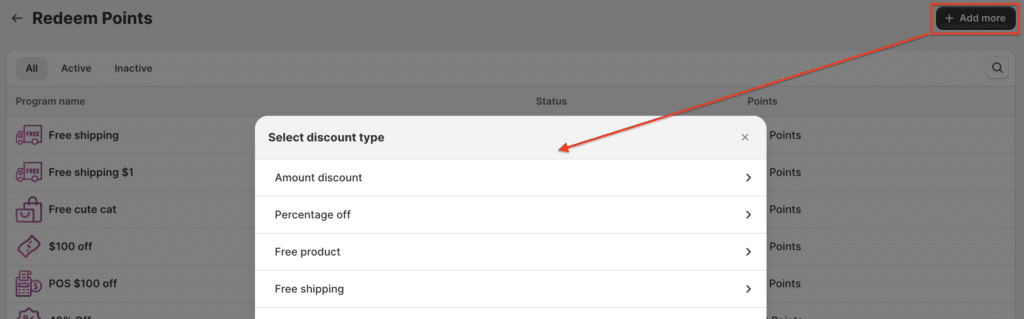
Go to Points Program > Redeem points > Add more in the upper right corner. Here, you can pick from our 4 options for discount types, including Amount discounts, Percentage Off, Shipping discounts, and Free products.
Once you have done that, please make sure all the discounts are activated, so that your customers can redeem and use them when they check out.
How to set it up in Shopify Theme and display it on your storefront
To enable and customize this feature for your store, follow these simple steps:
1. Display the extension:
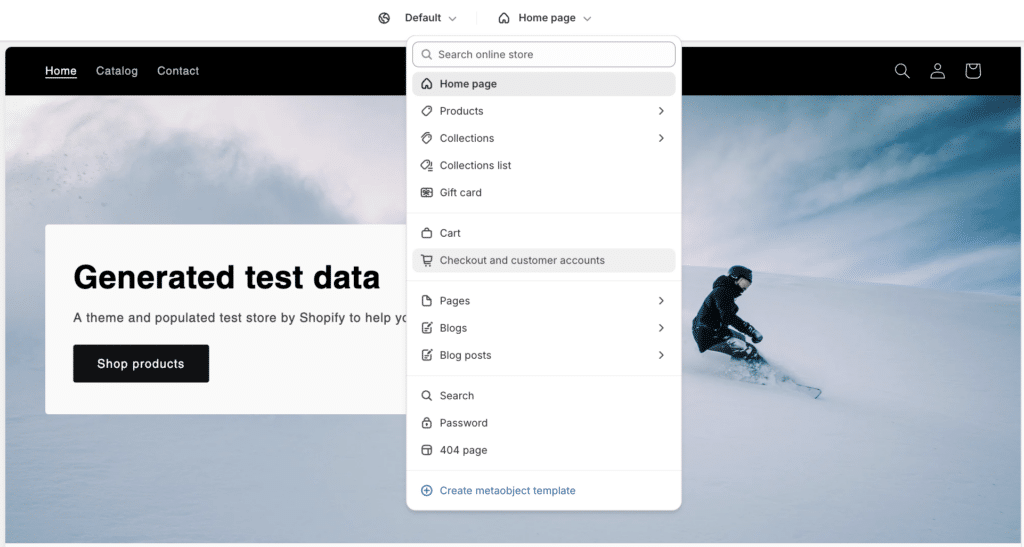
Go to the Theme Editor (Online Store > Themes > Customize > Checkout and Customer accounts)
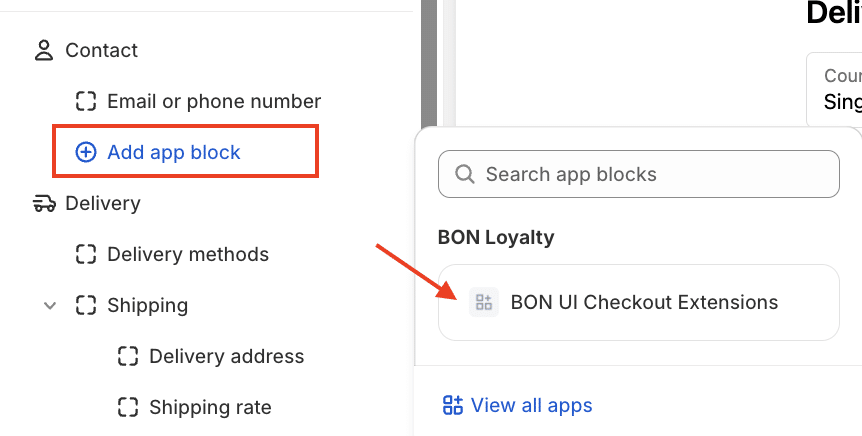
In the editor tab for Checkout pages (located in the left panel), click ‘Add app block‘ > BON UI Checkout Extensions
2. Customize the text and branding
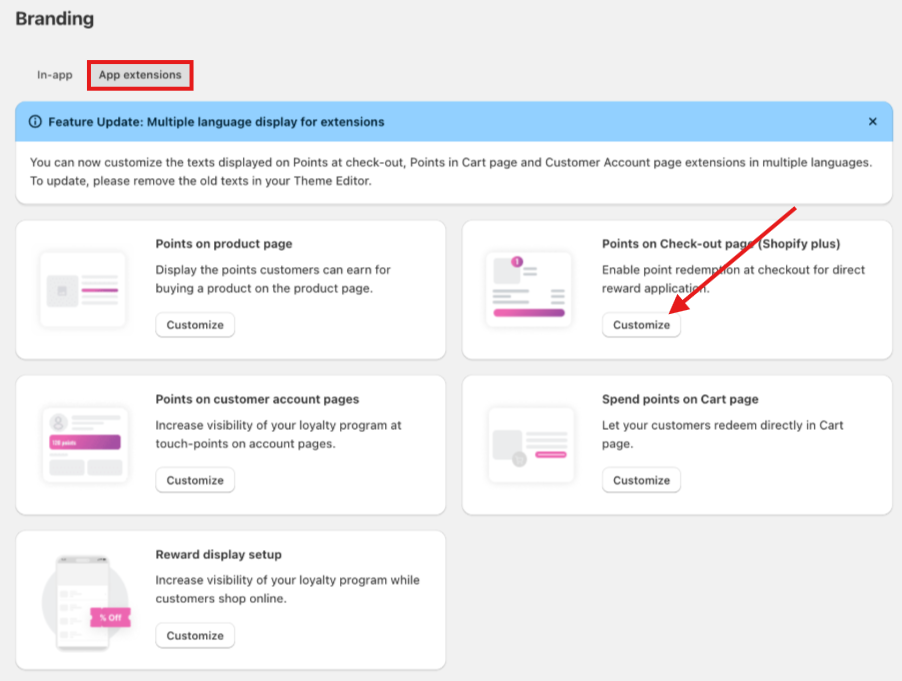
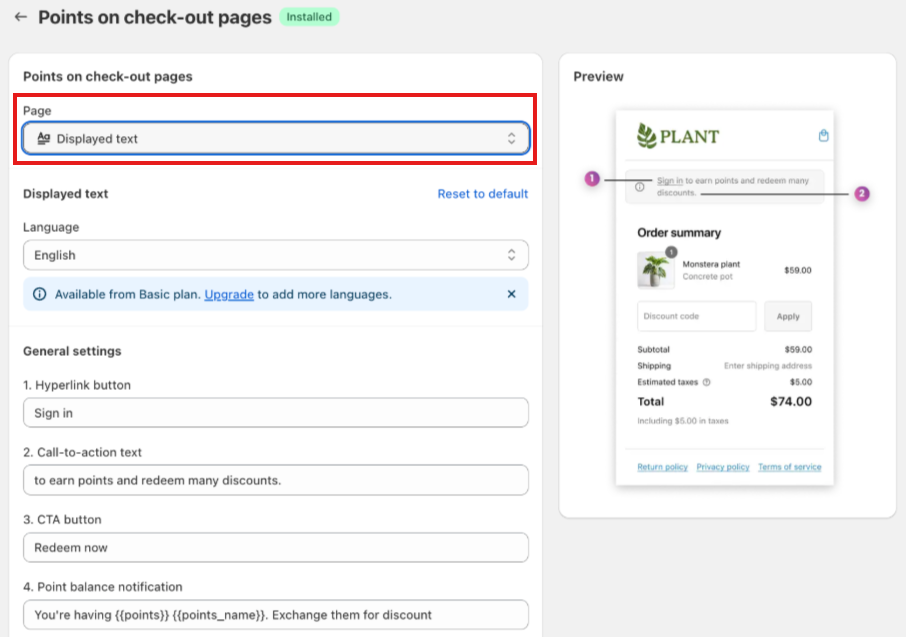
You can adjust the color of text to make it stand out or blend with your design: Go to Branding > App extensions > Points on Check-out page
If you want to change the text shown in the extension, switch to the page “Displayed text” and customize the content as you want.
NOTE: While editing, please do not change any attribute in {{_}}, as they are used to display the dynamic values from BON Loyalty.
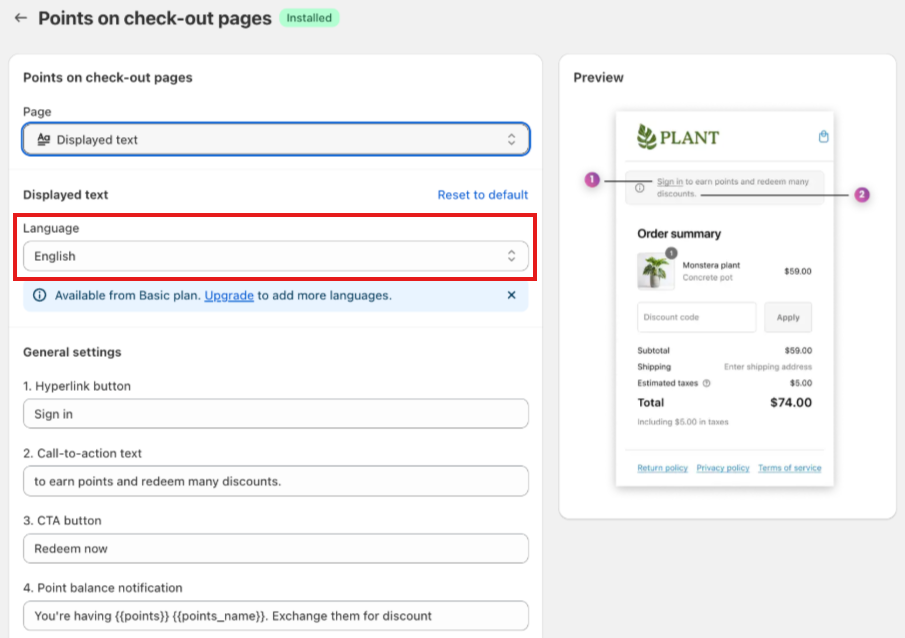
You can also display the extensions in multiple languages to support the customers in different markets.
From the Settings ‘Displayed text’, switch to different language tabs to adjust the translations.
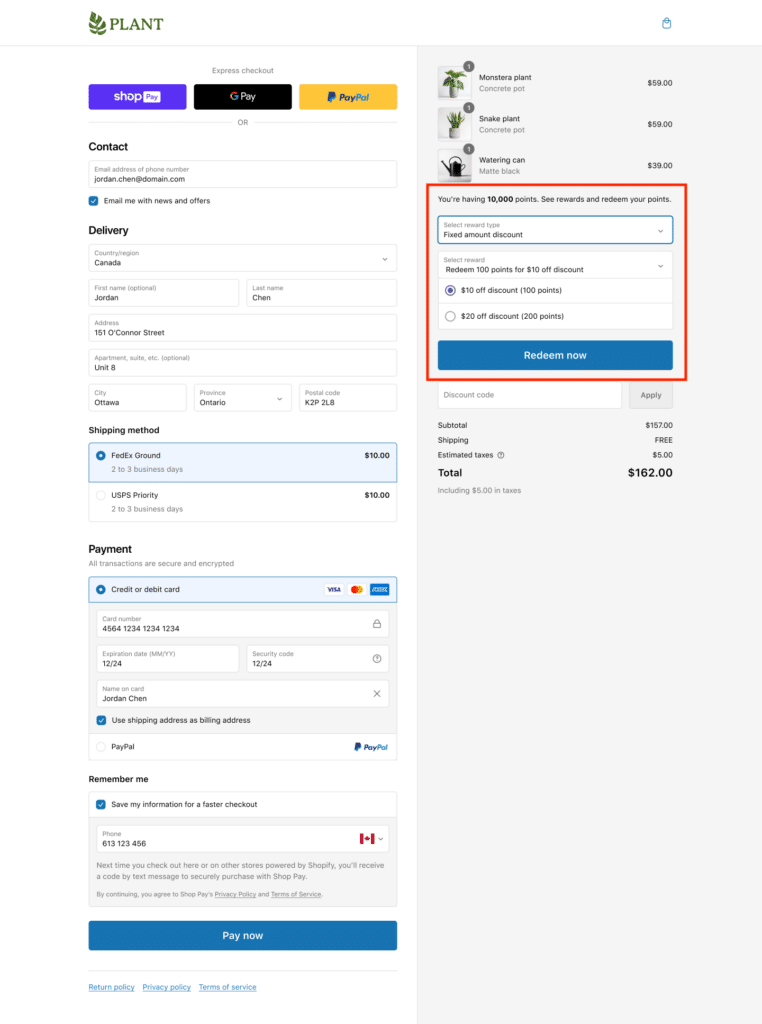
When you are done with the settings, your customers should be able to see their points balance, select the reward types, and select the discounts available to redeem and apply directly to their order while checking out.
NOTE: In some cases, customers may be unable to redeem points or apply discounts to their orders. If this happens, please review the discount’s usage conditions to ensure the order meets all requirements, such as applicable collections, minimum purchase amounts, or restrictions on combining discounts.