This guide will walk you through the steps to set up Free Shipping rewards in BON Loyalty quickly and effectively
Introduction
Did you know that unexpected shipping costs are one of the top reasons for cart abandonment? By offering free shipping as a reward, you’re removing one of the biggest barriers to completing a purchase. This perk makes your customers feel appreciated while also incentivizing them to redeem points and shop more frequently. It’s a win-win!
Where and how to set up Free Shipping rewards
To create a Free Product reward in BON Loyalty, follow these simple steps:
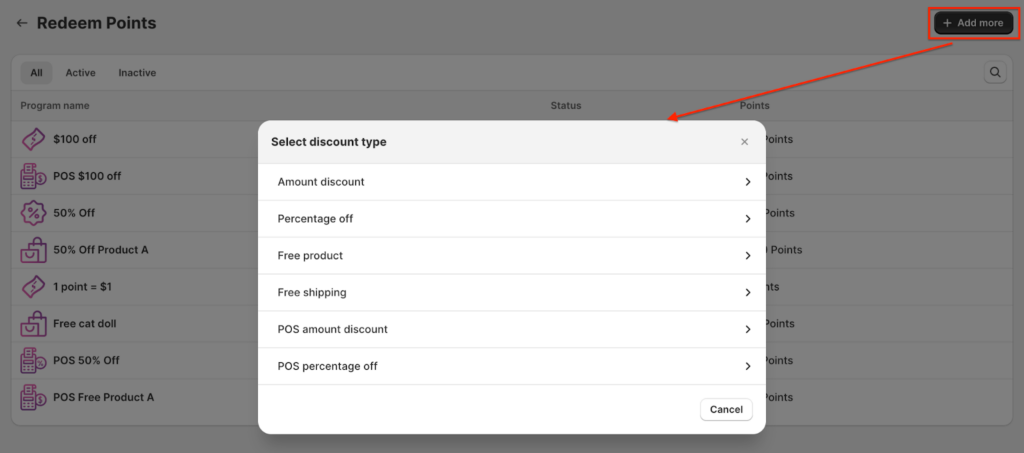
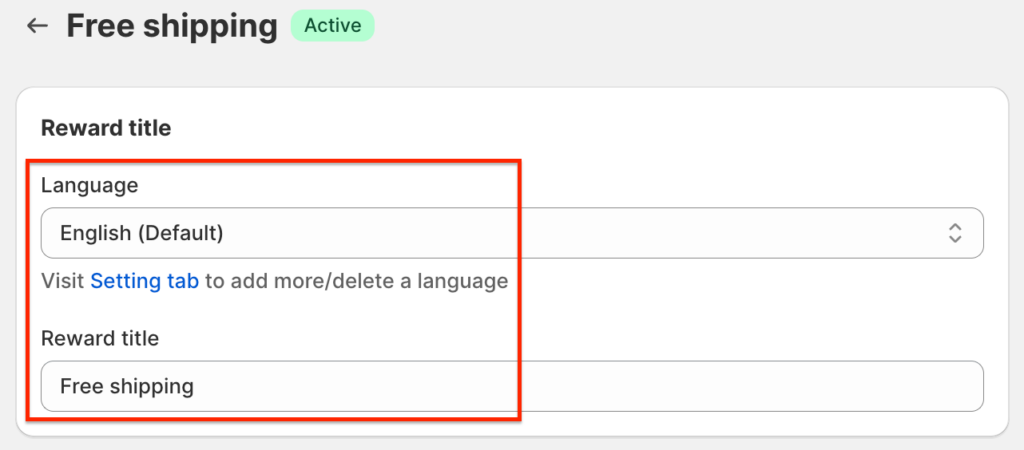
1. Navigate to BON > Point Programs > Redeem Points > Add More > Free Shipping. 2. Enter a title for the reward. This title will be visible to your customers, so make it clear and appealing.
BON Pro Tip: If your website supports multiple languages, make sure you update the title for each language. BON’s multi-language display feature is available on the Basic plan and higher.
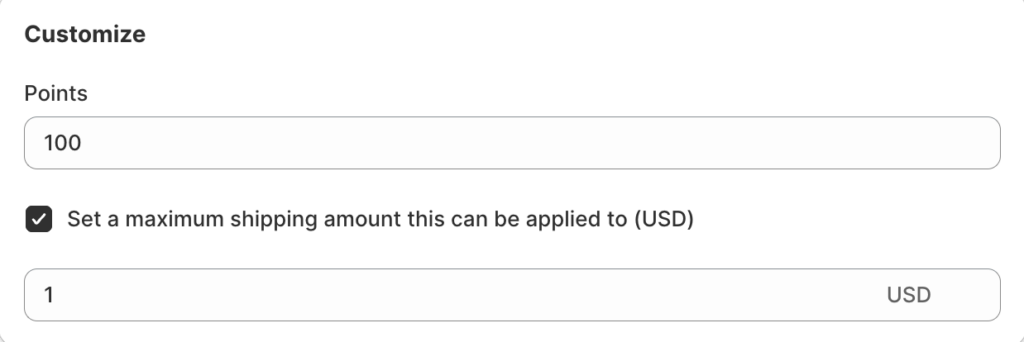
3. Set the number of points required for Free Shipping. Enter how many points customers will need to redeem to qualify for free shipping.
4. Decide whether to check the box“Set a maximum shipping amount this can be applied to”
If unchecked: The Free Shipping reward will automatically cover the entire shipping cost for the order, no matter the amount.
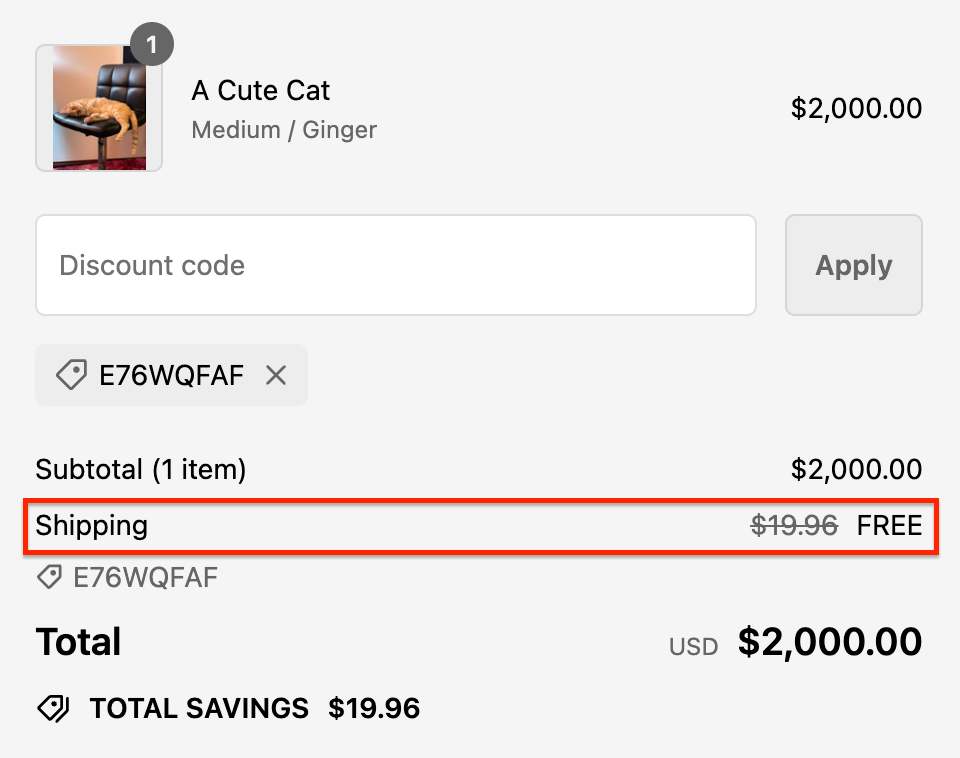
If checked: You can specify the maximum shipping amount to which this reward applies. For example, if you set the limit to $1, the reward can only cover up to $1 of the shipping cost. If the shipping cost exceeds that amount, the reward cannot be applied at checkout.
Set additional conditions (Optional)
To further customize your Free Shipping rewards, you can set the following conditions:
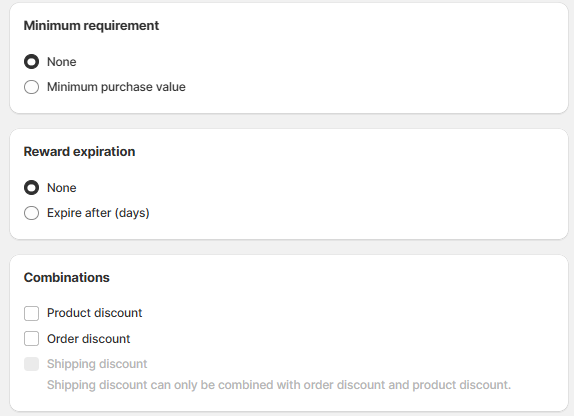
1. Minimum purchase requirement: Require customers to spend a minimum amount to apply the discount.
Example: The discount can only be applied to purchases of $20 or more.
2. Reward expiration: Set an expiration date for the discount code, which begins immediately after it is redeemed.
Example: The code expires 10 days after redemption.
3. Combinations: Enable the discount to be combined with other types of discounts. Discounts in Shopify are categorized into classes, such as:
Order Discount
Product Discount
Shipping Discount
You need to identify the discount classes and decide which ones can be combined.
Example: If you want a $100 Free shipping (Free Shipping discount) to combine with a Free Product discount, check the box for “Product discount” in the Free shipping Discount settings. Then, in the Free Product discount settings, check the box for “Free shipping discount.” Both discount classes need permission to combine, much like mutual consent in a partnership.
IMPORTANT NOTE: Discounts are generated by Shopify, and the rules for combination discounts are set by Shopify. To learn more, you can visit the Shopify Discount Combinations documentation HERE.