Learn how to set up the Reward Display feature to boost the visibility of your loyalty program rewards, encouraging customers to engage and participate more actively
IMPORTANT NOTE: The Reward Display feature is available from the Basic plan or higher. Check out our Pricing plans for more details.
What is Reward Display?
Reward Display setup includes two main functions – reminding customers about available rewards and showing members’ streak progress in the Order Booster program. If you want to encourage loyalty program members to redeem their points and increase purchase frequency, this is the feature you need.
Reward Display: Reward reminder
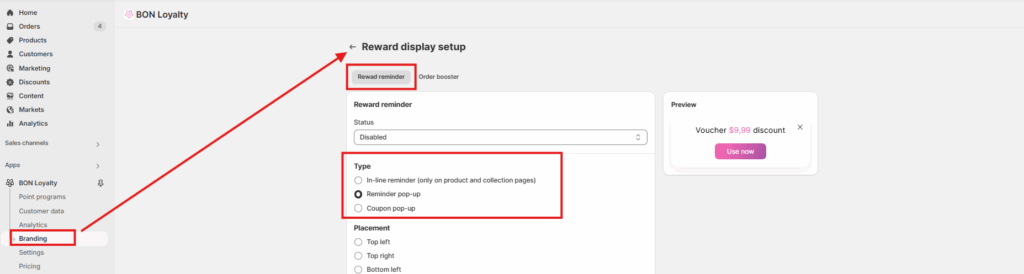
Reward reminder: A feature that uses small pop-ups to display the most valuable discount code a customer can redeem with their current points. There are 3 display options to choose from:
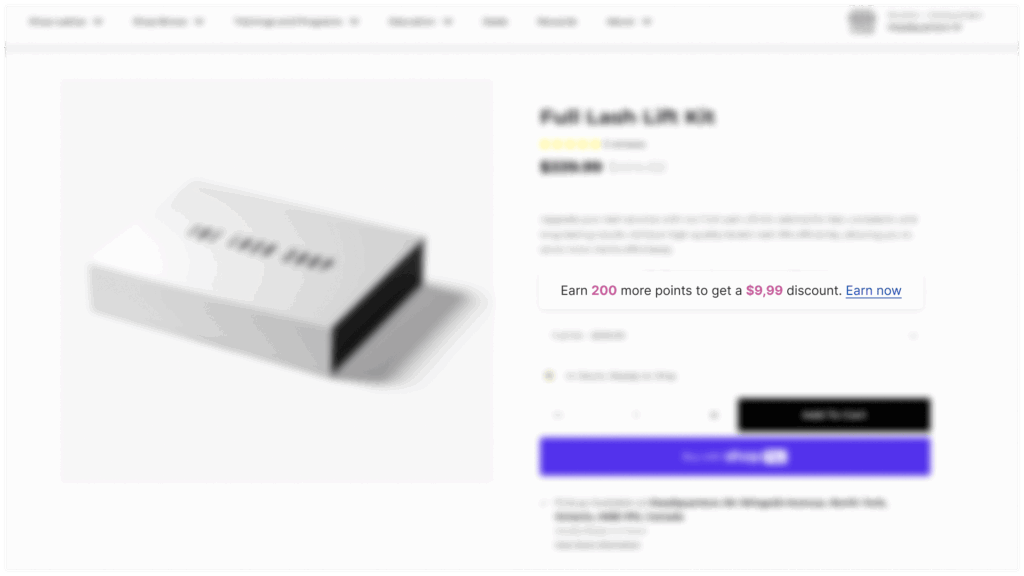
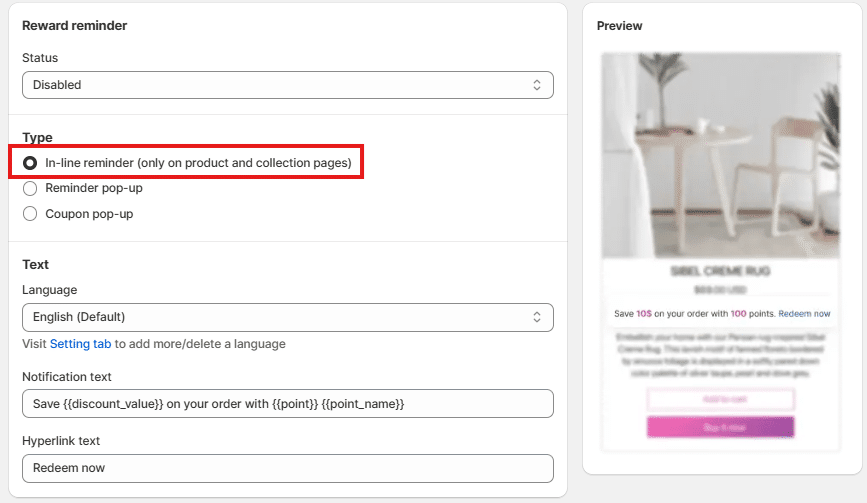
1. In-line Reminder (only on product and collection pages): An extension exclusively for product and collection pages, similar to the Points on Product page feature.
This drag-and-drop banner shows customers their current points balance and the most valuable discount code available. Use this extension if your subscription plan does not include the Points on Product page feature (Growth plan or higher).
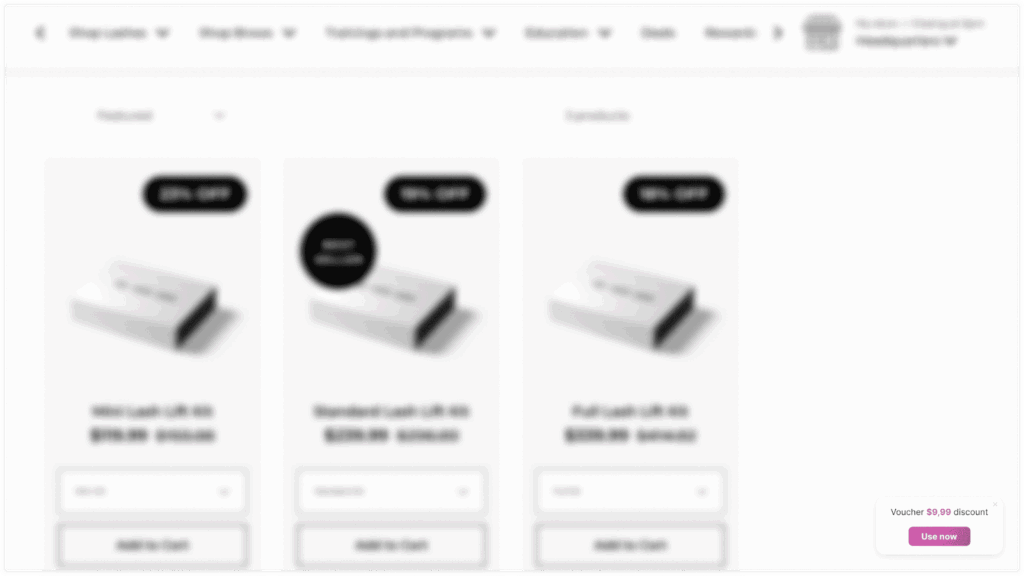
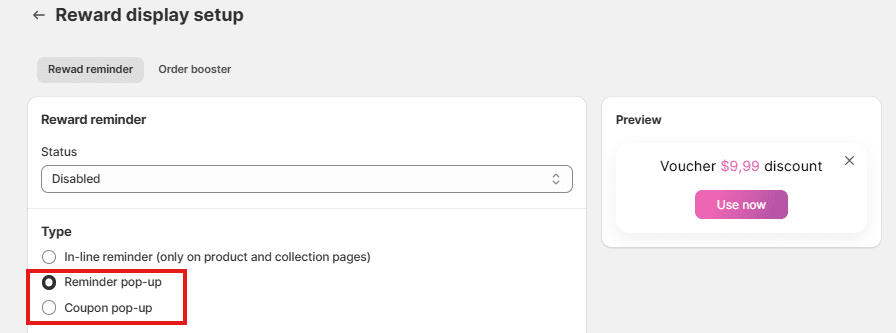
2. Reminder pop-up: A basic pop-up displaying the most valuable voucher a customer can redeem with their available points.
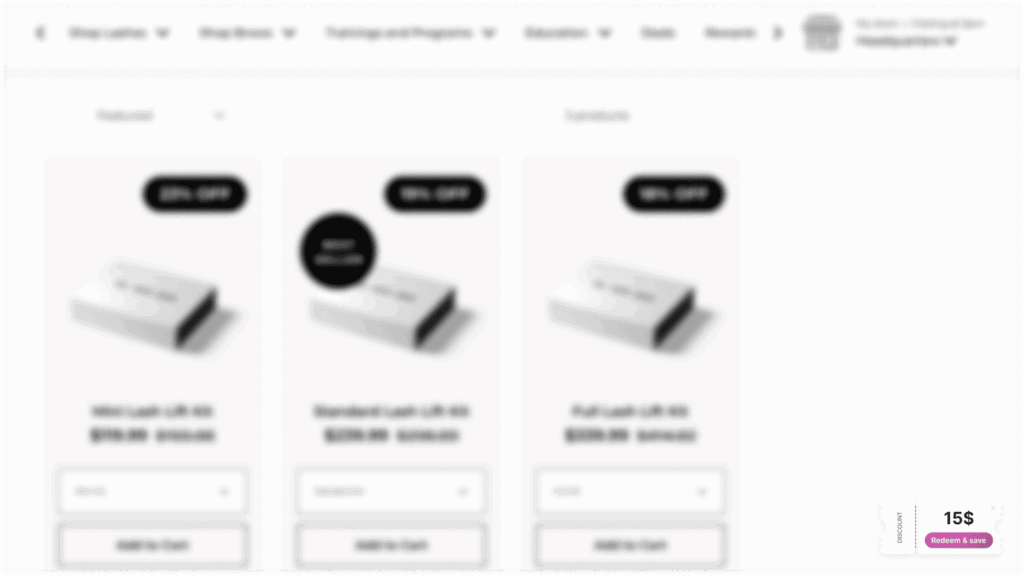
3. Coupon pop-up: A coupon-shaped pop-up designed to draw more attention to the most valuable voucher customers can redeem with their points, offering greater visibility compared to the basic Reminder pop-up.
Reward Display: Order booster
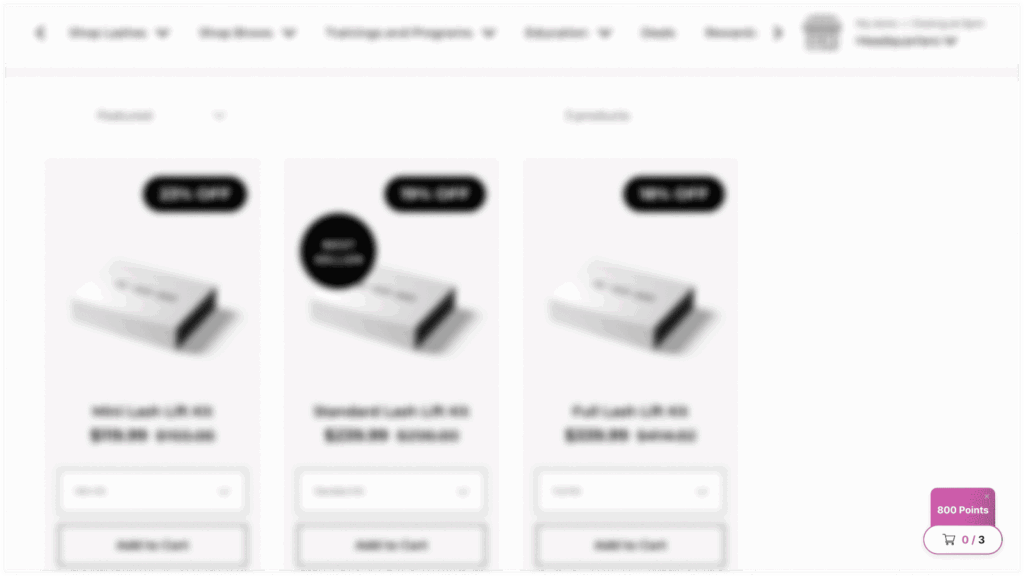
This pop-up displays the order streak customers can complete to earn rewards through the Order Booster feature, available from the Growth plan or higher. It’s designed to encourage customers to place more orders and stay engaged with your store.
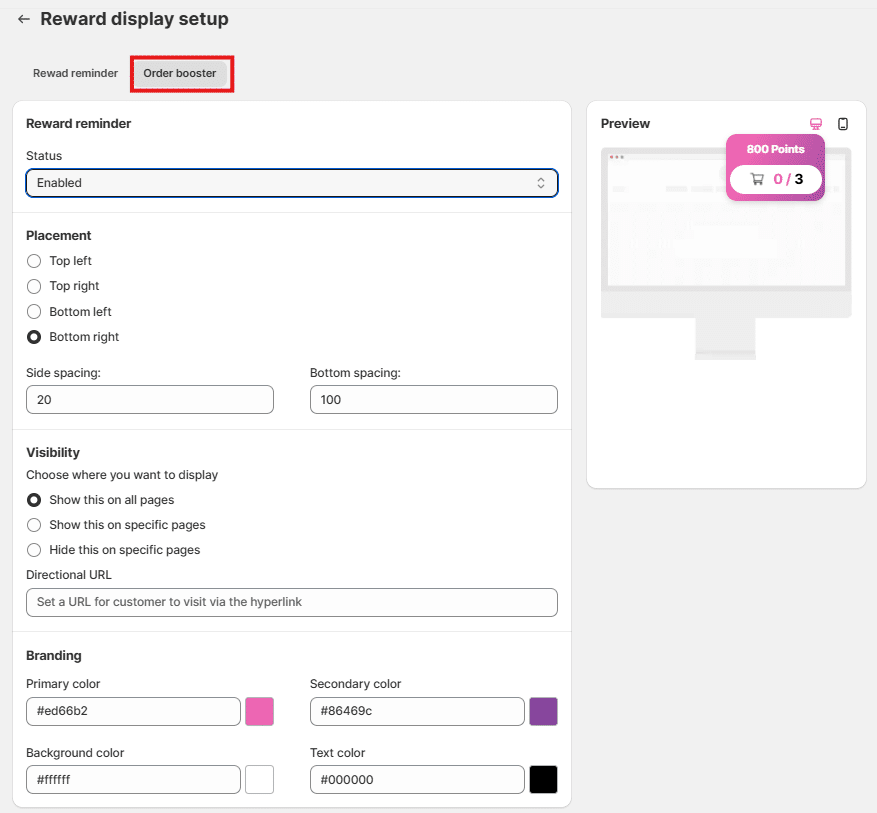
Go to BON > Branding > Reward Display setup > Order Booster > Configure the Placement, Visibility, and Branding settings to match your preferences.
Set up the In-line Reminder (only on product and collection pages)
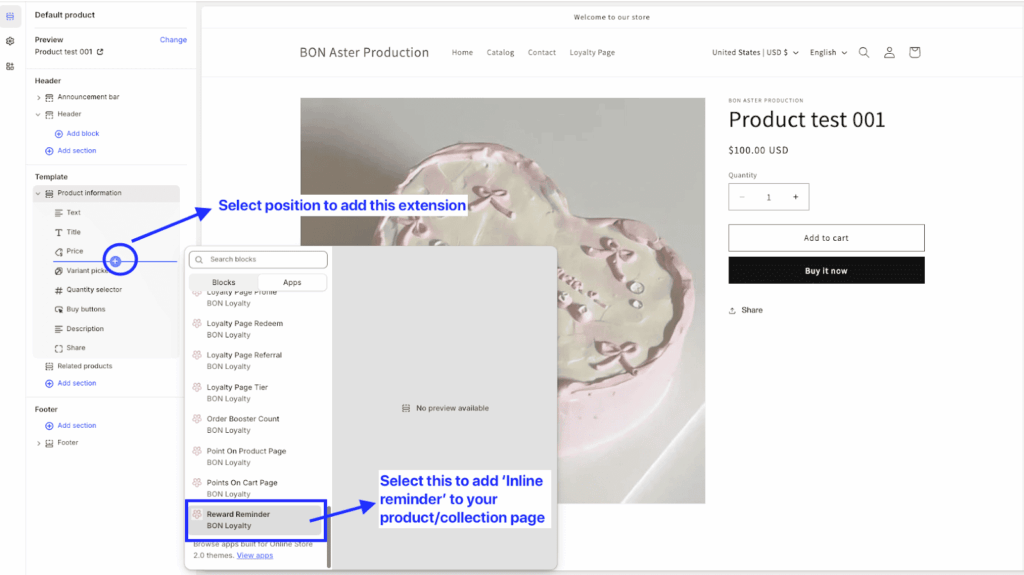
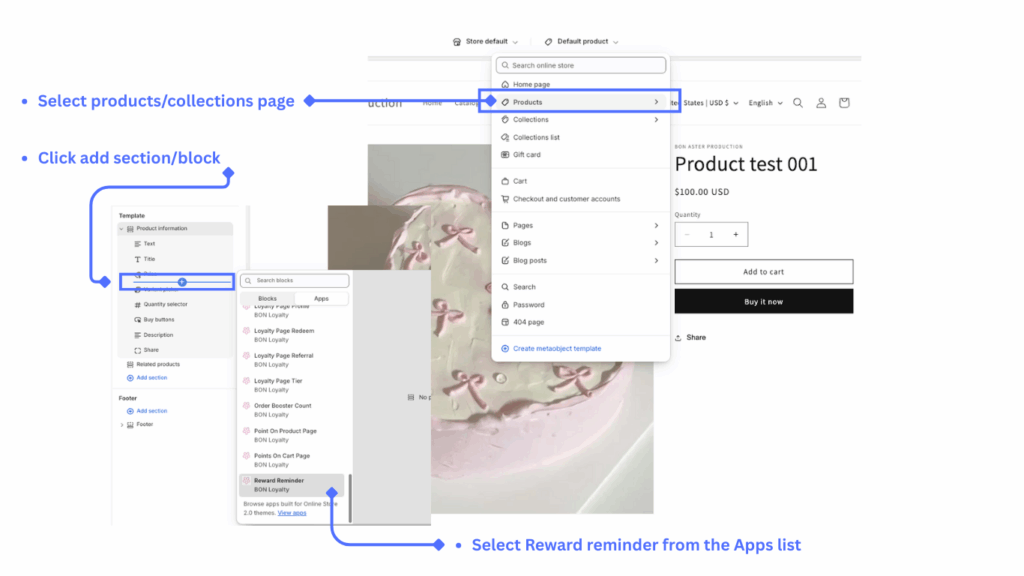
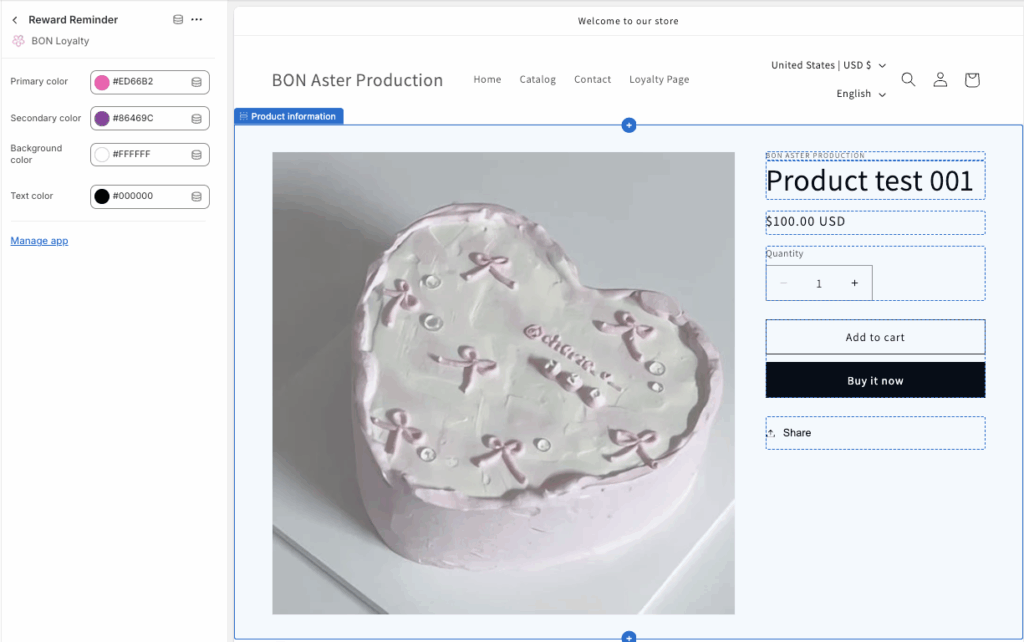
Select the correct Product or Collection page in the Page menu of the Theme editor > Choose the position where you want this banner to appear > Click Add Section/App block > In the Apps menu, scroll down and select the extension named Reward reminder.
You can adjust the background color, text color, discount and points value color, and the CTA button color.
To customize the In-line Reminder content > Go to BON > Branding > Reward Display setup > Reward reminder > In-line Reminder.
Set up the Reminder pop-up & Coupon pop-up
Go to BON > Branding > Reward Display setup > Choose the Reminder pop-up or the Coupon pop-up.
IMPORTANT NOTE: To set up the Reminder pop-up and the Coupon pop-up, make sure that the rewards are enabled in BON > Point programs > Redeem points.
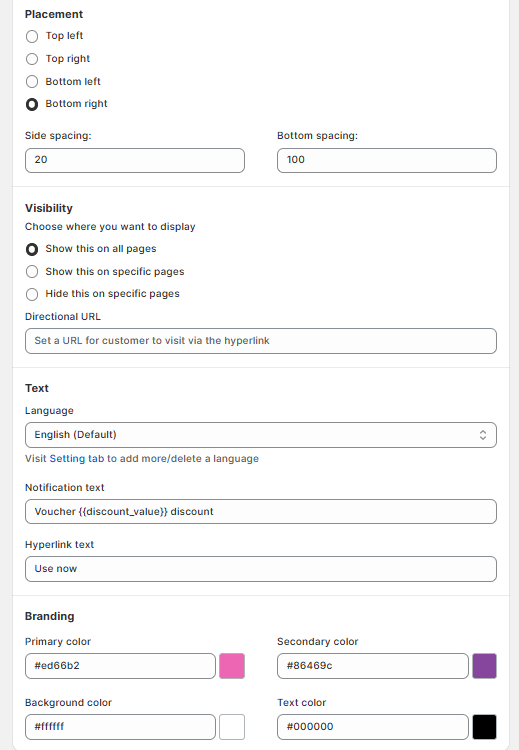
Placement: Decide where to put your pop-up by changing the position (top, bottom, right, left) and the side spacing so that the pop-up does not override the other contents.
Visibility: Decide to display your pop-up on all pages, or hide it from specific page(s) to make sure it aligns with the shopping experience you want to deliver to your buyers.
Text: Customize the text display on your pop-up to catch your customers’ eyes. Please note that you cannot change the attribute in ‘{{_}}’, as it dynamically displays the discount value that matches the customer’s point balance.
Branding: Change the colors of the CTA button and the background.