Learn how to set up the Points on the Product page feature to display the points customers can earn for each product clearly
IMPORTANT NOTE: The Points on the Product page feature is available on the Growth plan or higher. Check out our Pricing plans for more details.
Introduction
This feature allows you to display the number of points customers will earn right next to the corresponding products on your website. It helps shoppers quickly understand the reward points they can accumulate, enhancing their shopping experience. Setting it up is incredibly simple, quick, and requires no coding skills. Let’s get started together!
5 steps to set up the Points on Product page feature
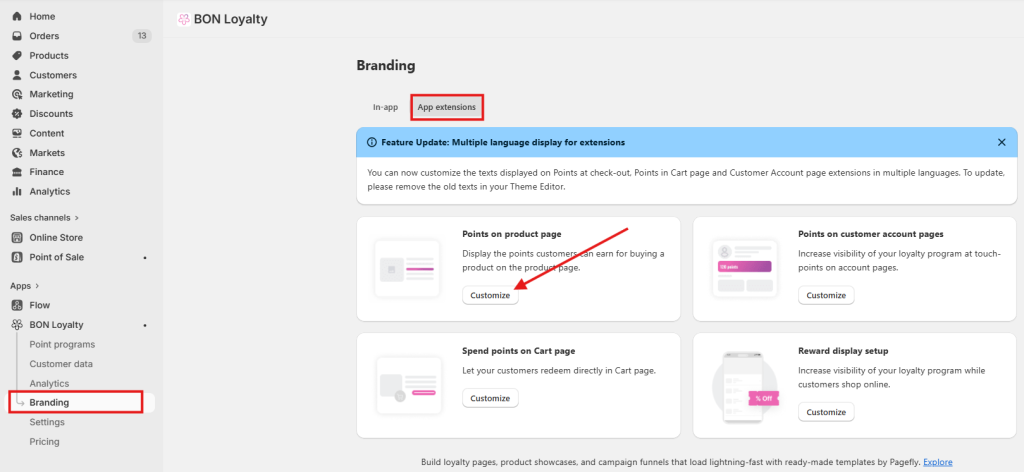
1. Go to BON > Branding > App extensions > Points on Product page
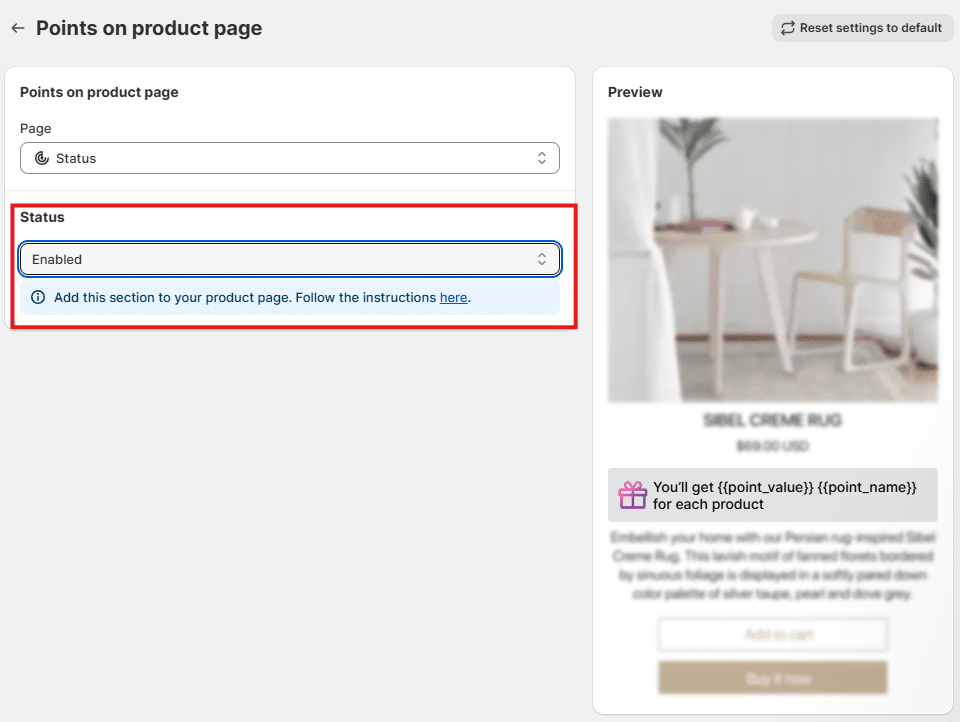
2. Within the Points on Product pagesettings > Toggle the option to Enabled to activate the feature.
3. Go to Shopify admin > Online Store > Themes > Homepage > Products > Select the desired product template (e.g., Default product).
4. Go to the Template section on the left panel > Add block > Apps > Choose Points on Product page > Add the block to your product page > Drag and drop it to your desired position.
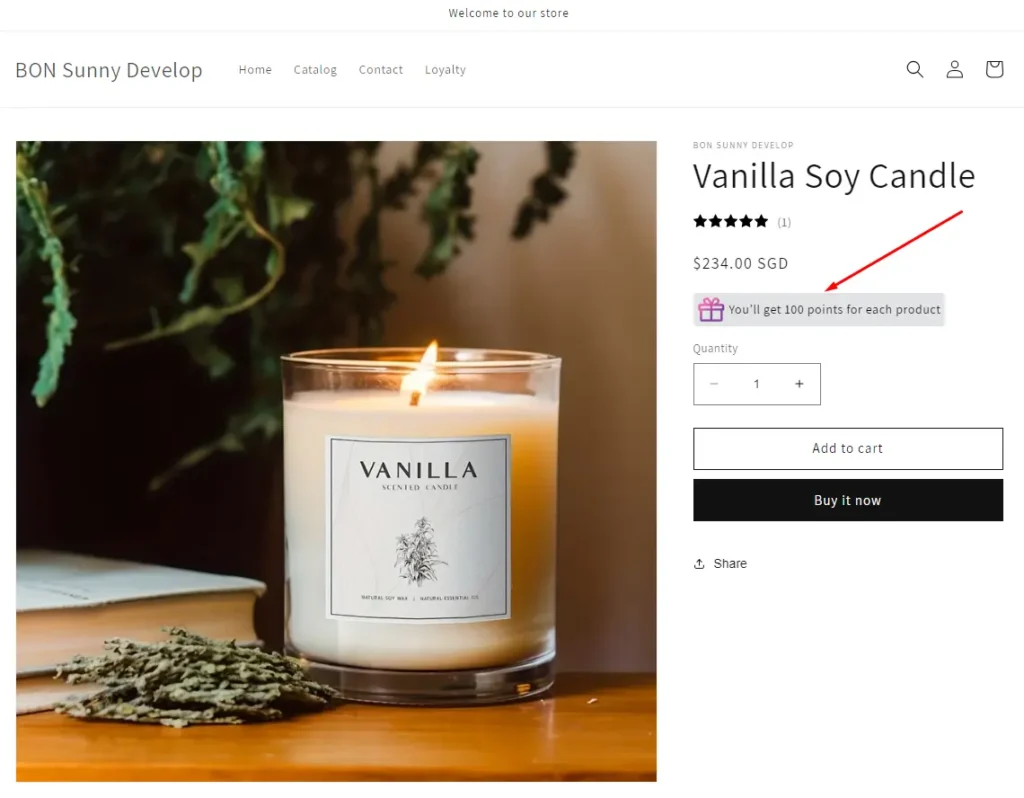
What the Points on the Product page block looks like on the website
On your website, shoppers will see a block displaying the reward points they can earn for each product. The point value will adjust automatically based on the specific product, ensuring customers see the correct amount for every item.
How to customize the Points on the Product page branding and text
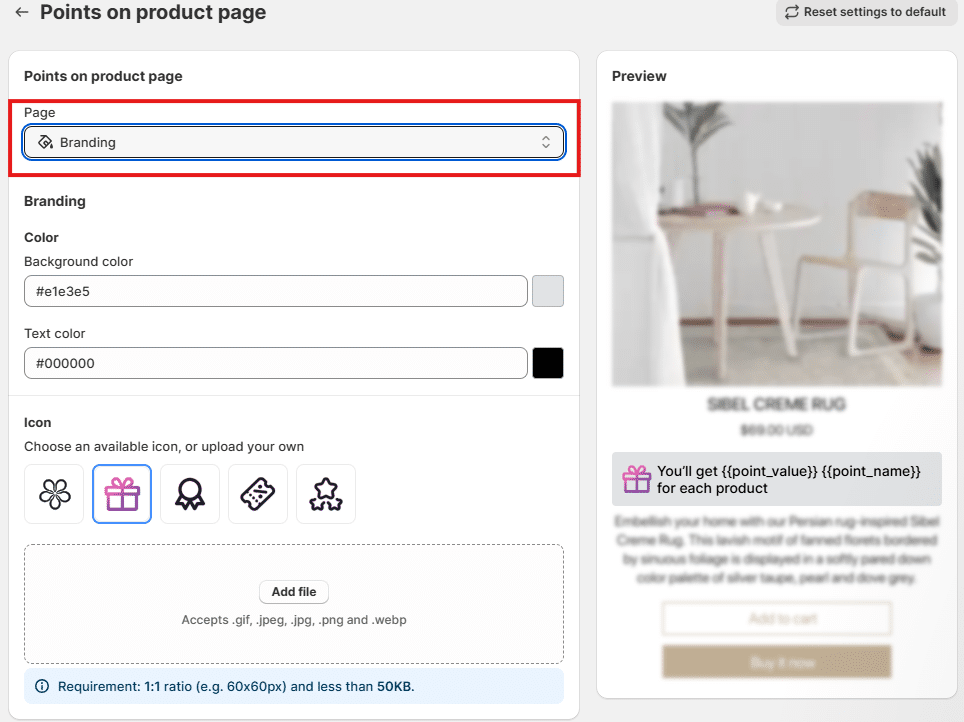
Within the Points on Product page settings > Go to the Branding tab > Customize the Colors and Icon to match your store’s style.
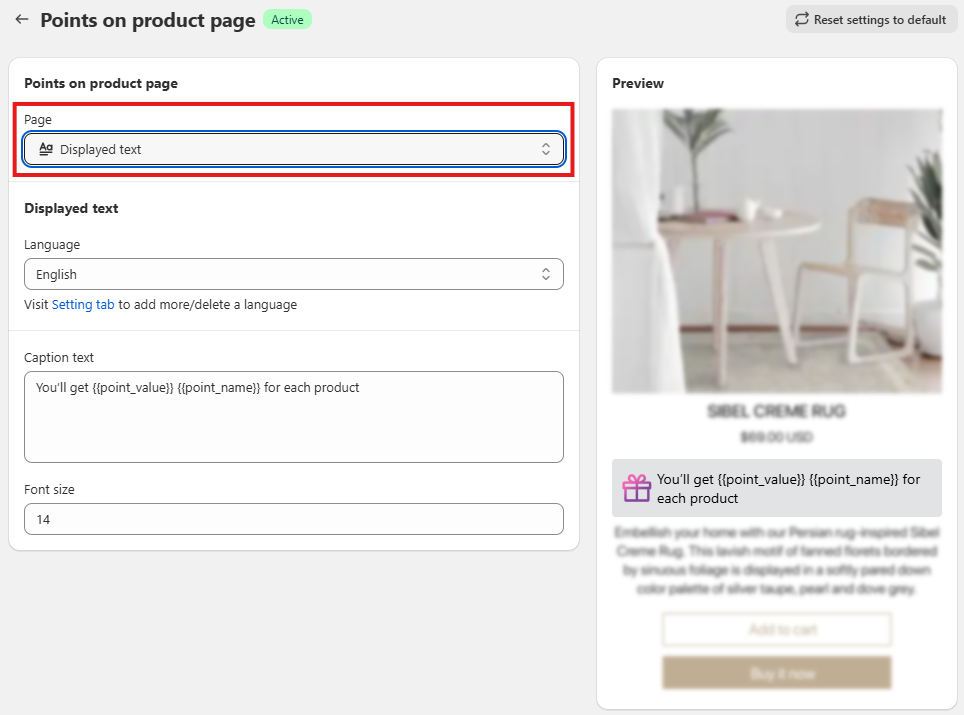
Within the Points on Product page settings > Go to the Displayed Texttab > Customize the Text to match your store’s tone and messaging.
IMPORTANT NOTE: While editing, please do not change any attribute in {{_}}, as they are used to display the dynamic values from BON Loyalty.
{{point_value}} will automatically update to show the corresponding points for each product.
{{point_name}} will automatically update to reflect your store’s chosen term for ‘point’.
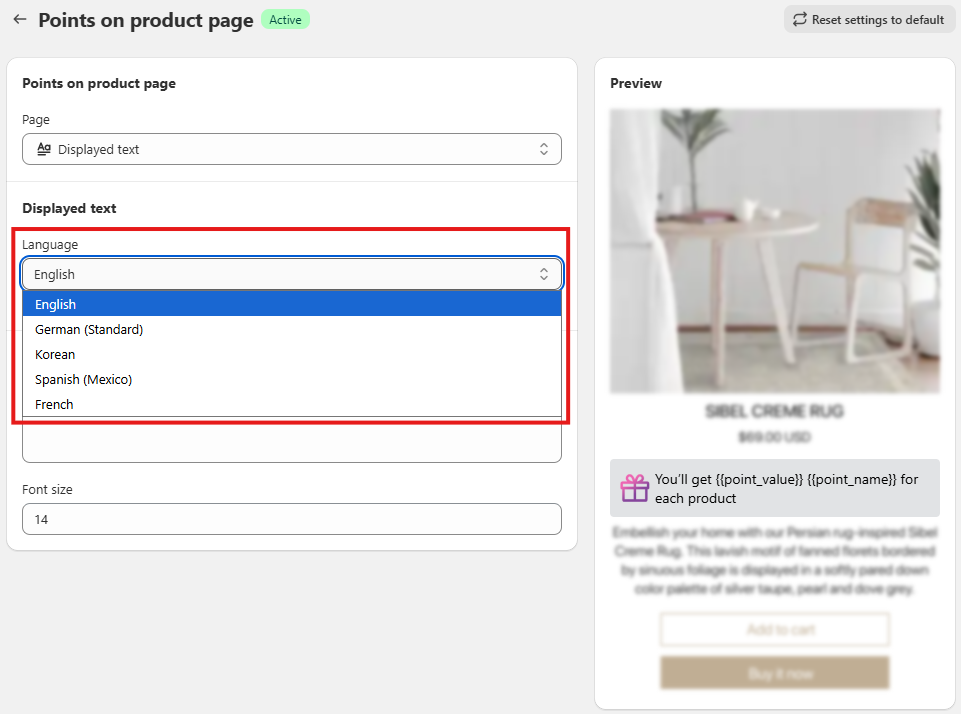
You can also display the extensions in multiple languages to support the customers in different markets.
From the Settings ‘Displayed text’, switch to different language tabs to adjust the translations.