Learn how to set up BON Loyalty extensions on Customer account pages
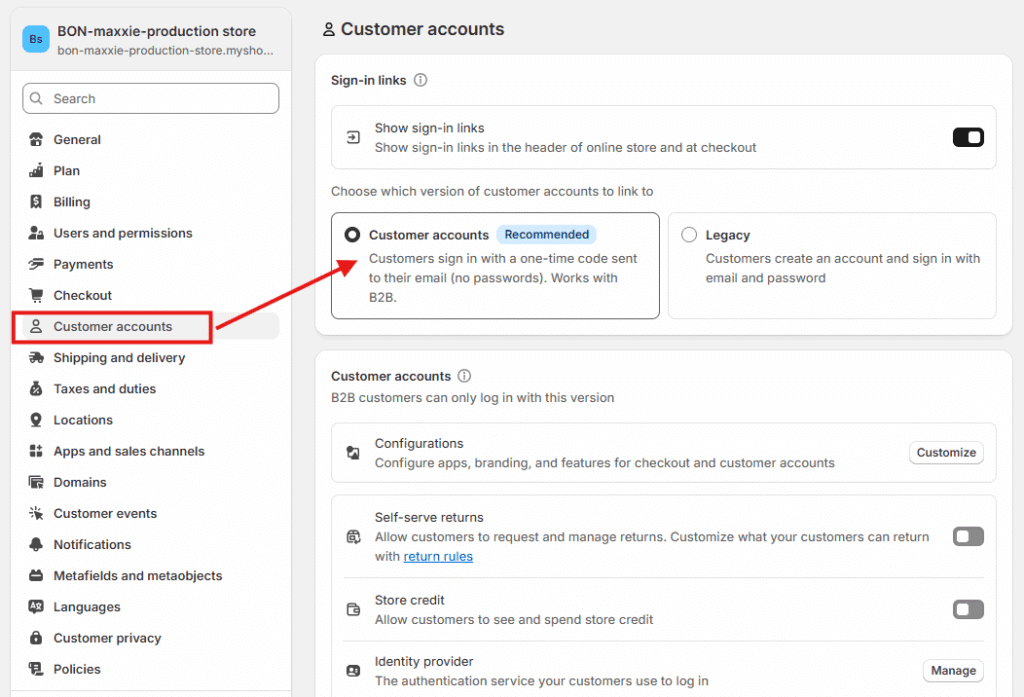
IMPORTANT NOTE: This feature is available for stores using the Customer Account Login type. It is not supported for Legacy accounts.
What is Points on Customer account page?
App embeds are app elements that overlay your theme or add code to your online store without being visible to your customers. It can be a chat bubble app that appears in the corner of your store, or a call-out card displaying loyalty points and rewards.
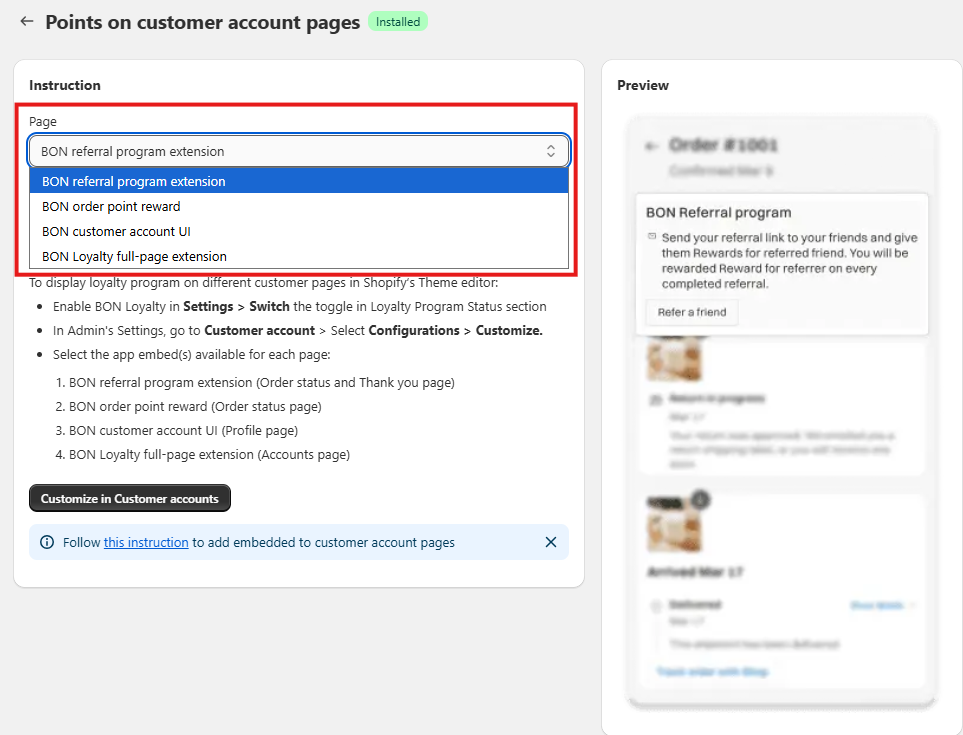
With BON Loyalty, there are 4 options to showcase your loyalty program on the Profile, Account, Order Status, and Thank You pages.
BON customer-account-ui on the Profile page
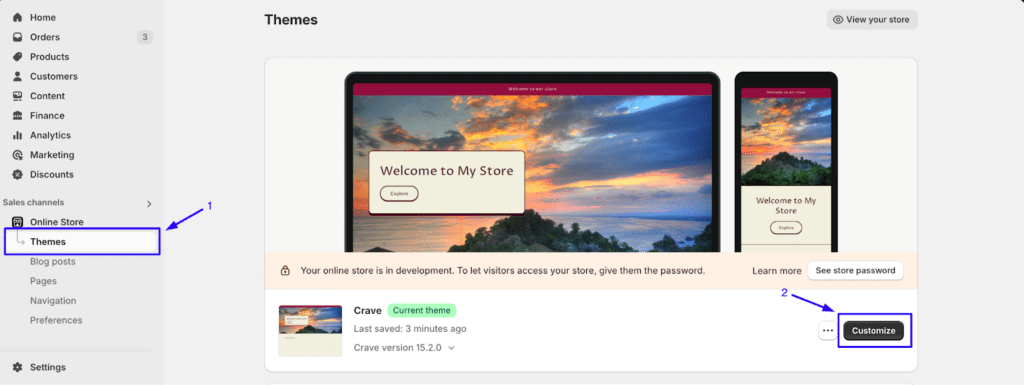
To add the bon-customer-account-ui app embed on the Profile page > Go to Themes > Customize.
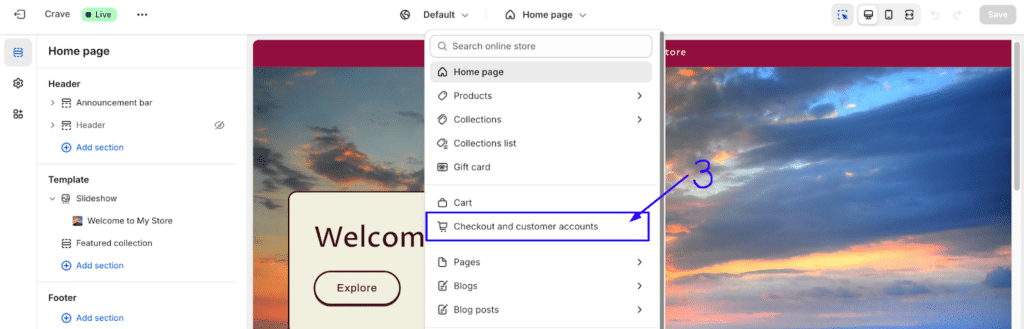
Select Check out and customer accounts on the page list.
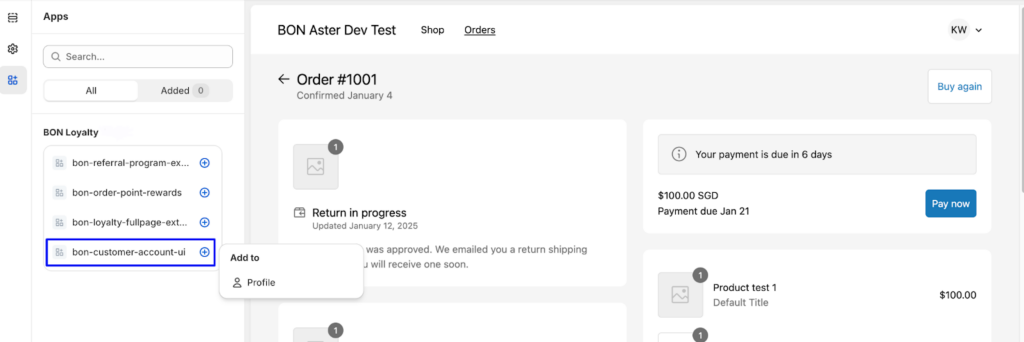
Go to Apps > Find the extension calledbon-customer-account-ui.Add that to your Profile page and adjust the position to your liking.
BON full-page-extension on the Account page
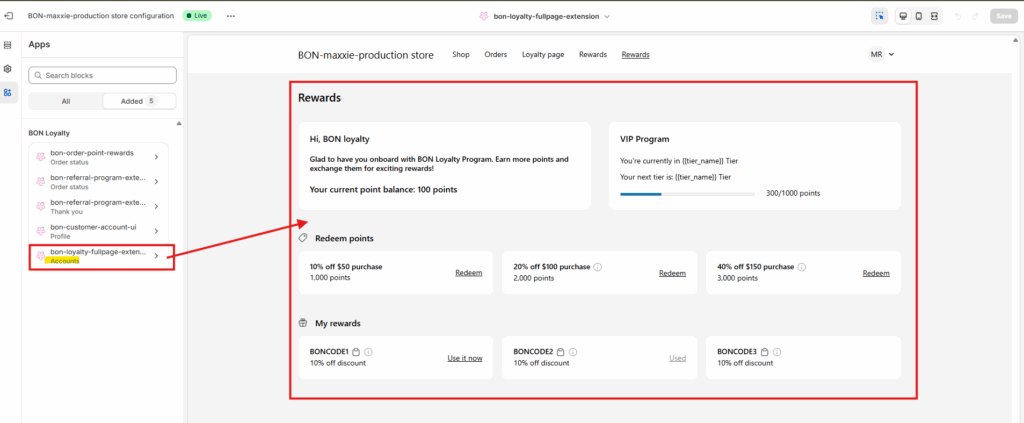
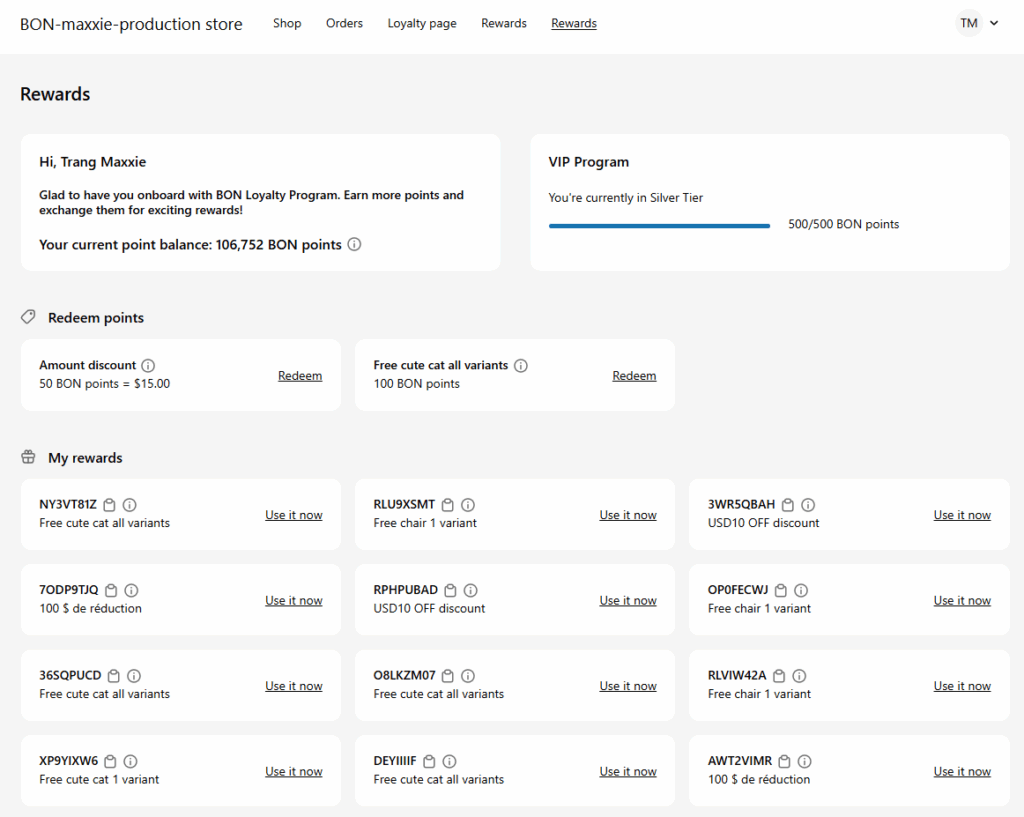
After adding the bon-customer-account-ui app embed above, don’t forget to add the bon-loyalty-fullpage-extension. With this extension, the customer shopping experience is enhanced by adding a dedicated tab for tracking membership progress, viewing membership tiers, or checking and redeeming points directly on the new Customer Account page. All these features can be found in thebon-loyalty-fullpage-extension.
To learn how this full page works, please refer to this VIDEO.
Here’s what the bon-loyalty-fullpage-extension appears on the actual new Customer Account page.
IMPORTANT NOTE: Please make sure you have activated all programs required (i.e. VIP Tiers, point-earning programs, point-redemption programs). Customization for branding, including colors, fonts, text colors, etc., will be synced in accordance to your Shopify theme and cannot be changed manually.
BON referral-program-extension on the Thank You page
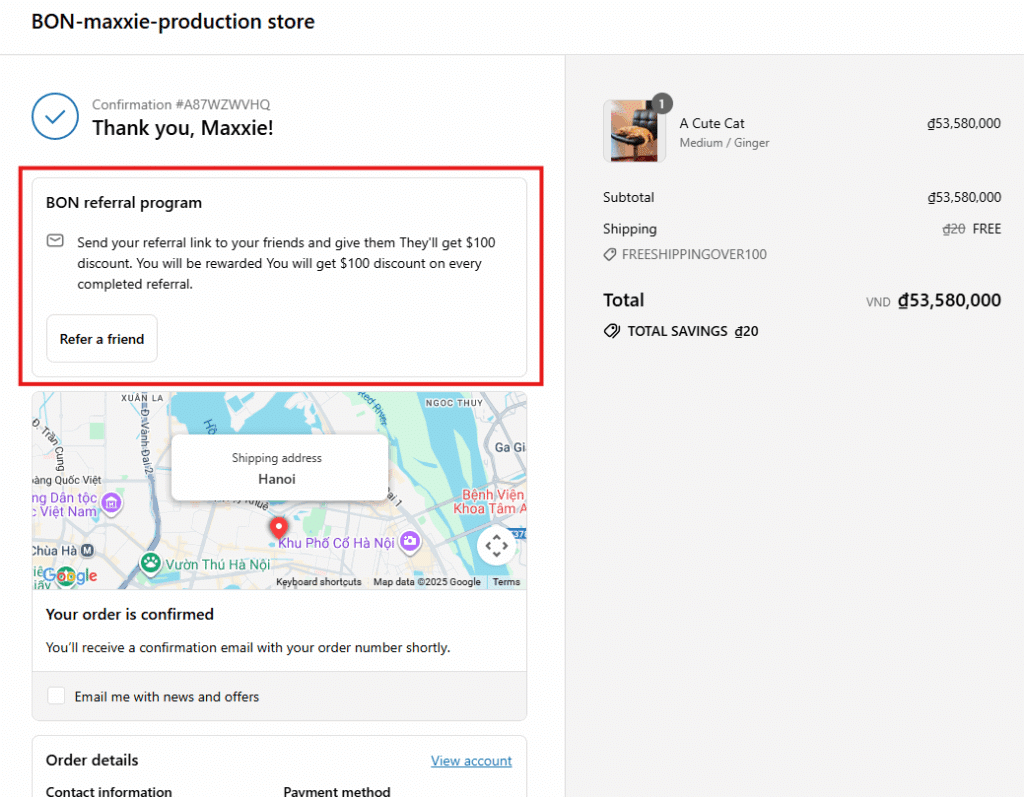
On the Thank You page, you can add the bon-referral-program-extension to make it easy for customers to access their referral link and share it with friends and family, helping you attract more organic traffic.
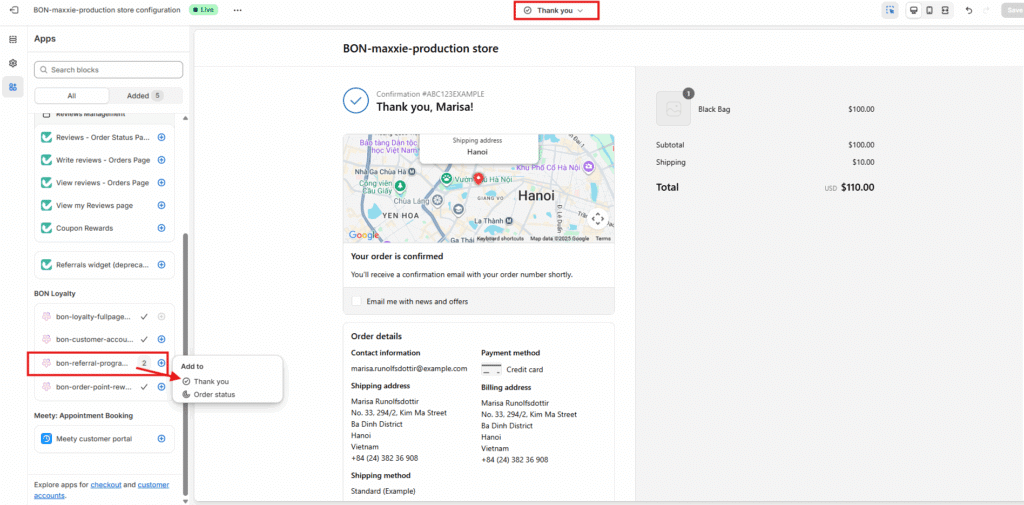
As you are already in the editing tab for Checkout and customer account, go to Apps > Select extensions called bon-referral-program-extension > Add it to the Thank You page.
IMPORTANT NOTE: Shopify currently does not allow app embed extensions to be displayed in the Theme preview for the Thank You page. After adding the bon-referral-program-extension to the Thank You page, please place a test order to view it on the actual Thank You page from the customer’s perspective.
Here’s what the bon-referral-program-extension appears on the actual Thank You page.
BON referral-program-extension & order-point-rewards on the Order Status page
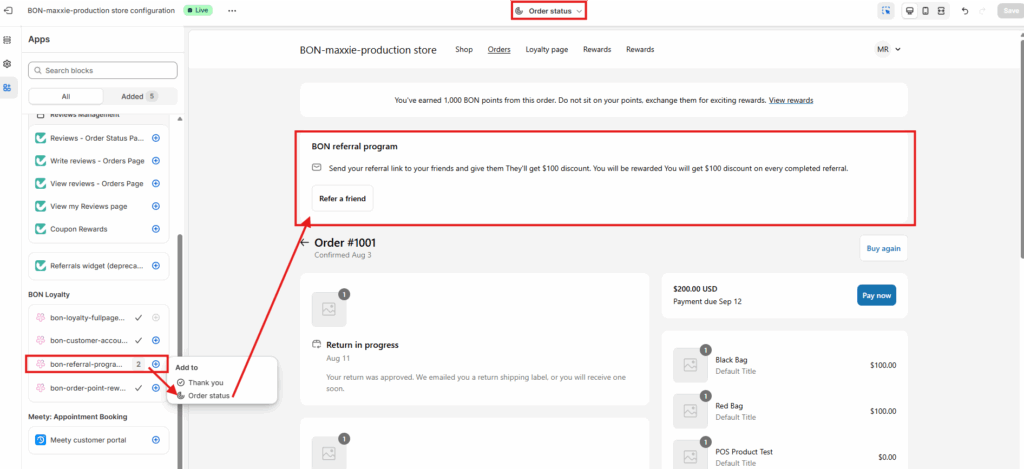
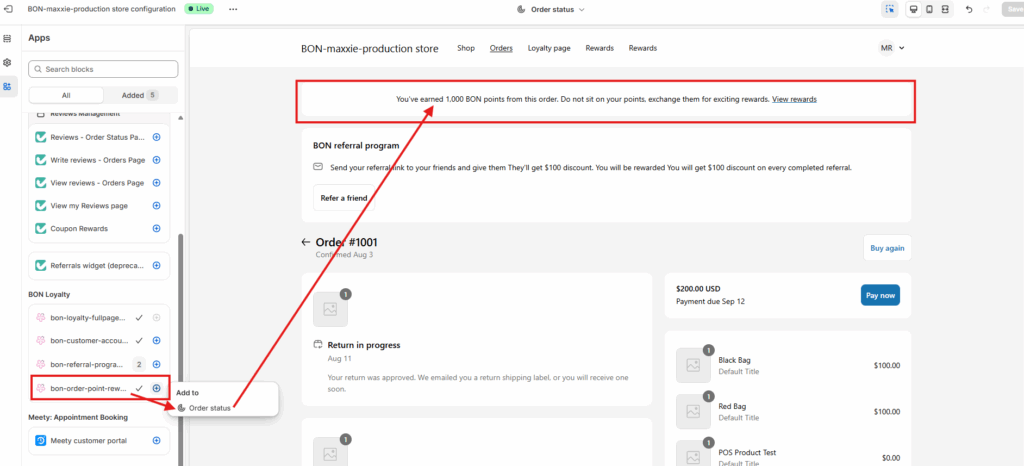
The bon-referral-program-extension and bon-order-point-rewards app embeds allow customers to easily refer their friends and see how many points they earned from the order they’ve just completed on the Order Status page.
IMPORTANT NOTE: Please ensure that you have activated the Referral Program and rewards in BON > Point programs > Redeem points. Also, in Shopify > Settings > Customer accounts, make sure the Customer Account login type is selected. Otherwise, these extensions will not appear.
As you are already in the editing tab for Checkout and customer account, go to Apps > Select extensions called bon-referral-program-extension > Add it to the Order Status page.
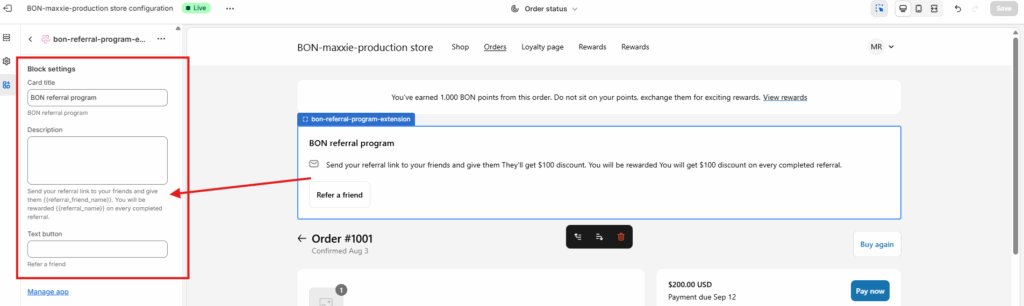
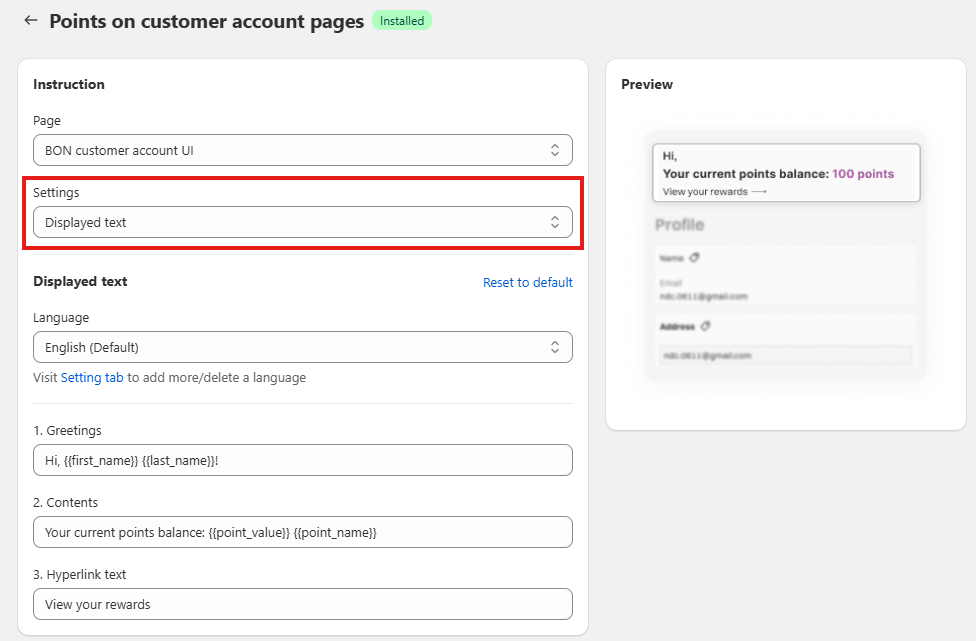
To edit its content, you can adjust the default text by typing in the text inputs in the left corner. While editing, please make sure you do not change the attributes in the {{_}}. The direct link in the hyperlink text is by default and cannot be changed.
As you are already in the editing tab for Checkout and customer account, go to Apps > Select extensions called bon-order-point-rewards > Add it to the Order Status page.
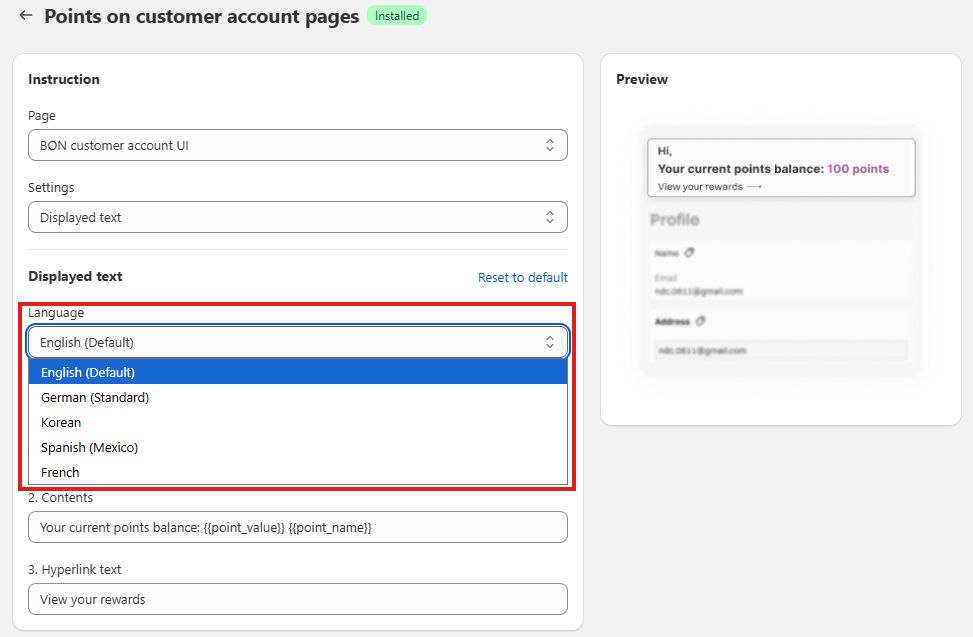
How to customize the extension content and display the extension in multiple languages?
1. Customize the extension content
You can edit the text of the embedded content to match your branding:
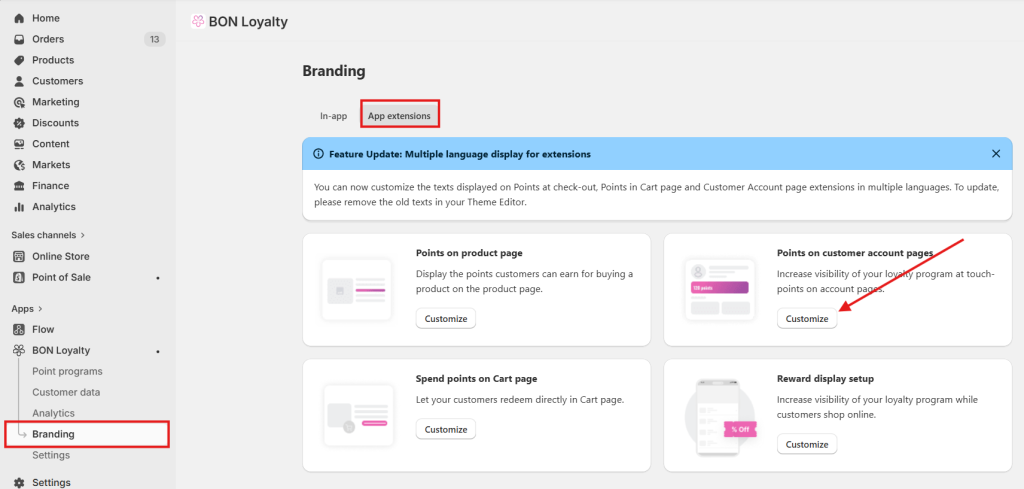
Go to Branding > App extensions > Points on customer account page.
Select the extension you would like to adjust > Settings “Displayed text” and customize the content as you want.
NOTE:
While editing, please do not change any attribute in {{_}}, as they are used to display the dynamic values from BON Loyalty.
If you’d prefer not to display both the first and last name, you can choose to use either {{first_name}} or {{last_name}} attribute instead, whichever fits your message best.