In this document, we’ll walk you through how the redeem section works on the Cart page, how to set it up, and some important considerations to ensure your store maximizes the value of this feature
How Points on Cart page helps
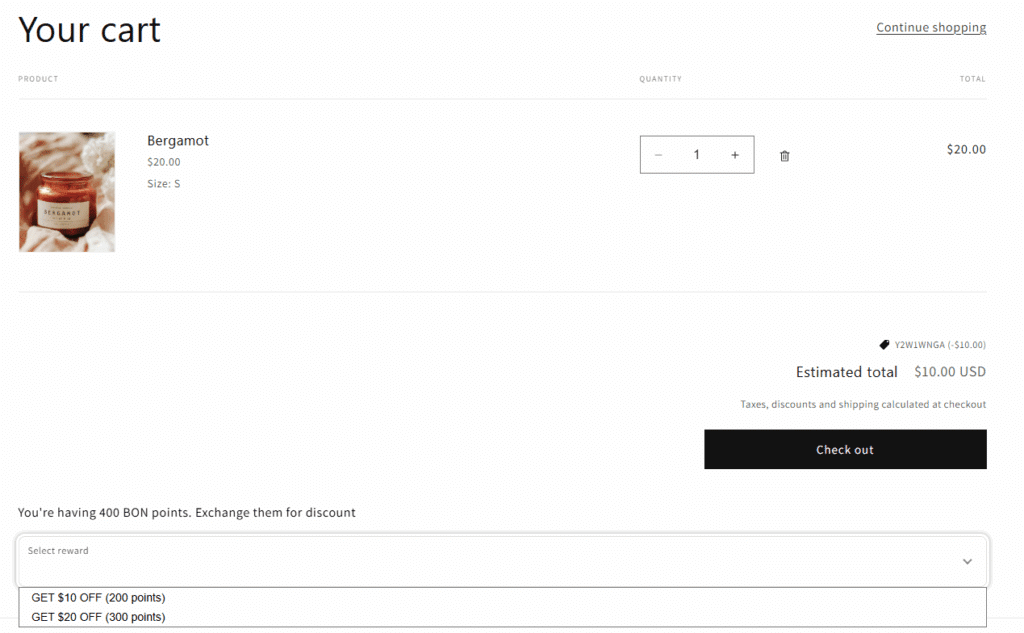
The Points on Cart page extension enhances your store’s loyalty program by displaying customers’ loyalty points and allowing them to redeem those points directly in the cart. This feature makes it easier for customers to see and use their rewards right before checkout, giving them a clear view of the discounts they’ve earned. By highlighting the value of these rewards, you can increase the likelihood of a purchase. Visible rewards not only boost customer loyalty but also drive higher conversion rates.
Let’s explore how this feature works and how you can easily implement it for your Shopify store!
Important notes
Shopify theme 2.0 requirement:
This feature is available only for stores using Shopify Theme 2.0. If you’re using an older version of Shopify themes, you’ll need to update to a newer theme version to use this feature.
Availability:
This feature is available for all Shopify plans, so whether you’re on Basic Shopify or Shopify Plus, you can use it to enhance your store’s loyalty program.
Mobile Optimization:
Ensure that the Points On Cart Page feature is optimized for mobile devices, as many customers shop on mobile. Test the cart display on mobile to make sure it’s working as expected.
How Points on Cart page works
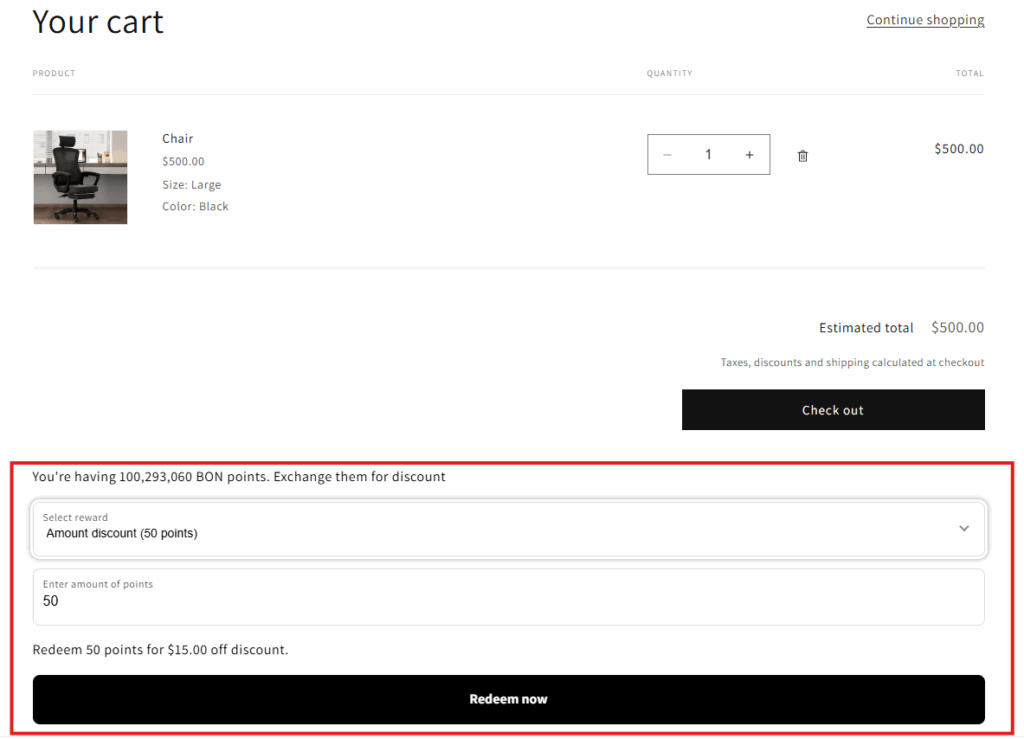
When a customer adds products to their cart, they will be able to view their loyalty points and list of available discounts on the cart page. Here’s how it works:
Displaying points: The customer’s loyalty points will appear on the Cart page, showing the number of points earned and the corresponding discount value.
Redeeming points: Customers can choose to redeem their points by applying the discount directly on the Cart page.
Canceling or refunding points: If the customer decides to cancel the order or request a refund, the loyalty points will be automatically refunded. The discount will also be removed if it hasn’t been used.
How to set up Points on Cart page
To enable and customize this feature for your store, follow these simple steps:
1. Display the extension:
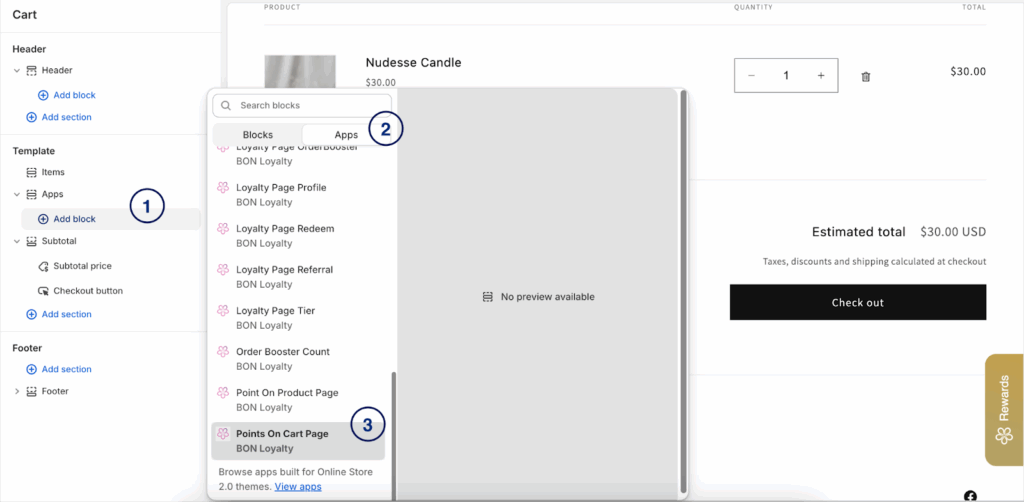
Go to the Theme Editor (Online Store > Themes > Customize > Cart page) to customize how the points are displayed.
On the Cart page > Template > Add Section (located in the left panel) > Apps > Points on Cart Page.
2. Customize the text and branding
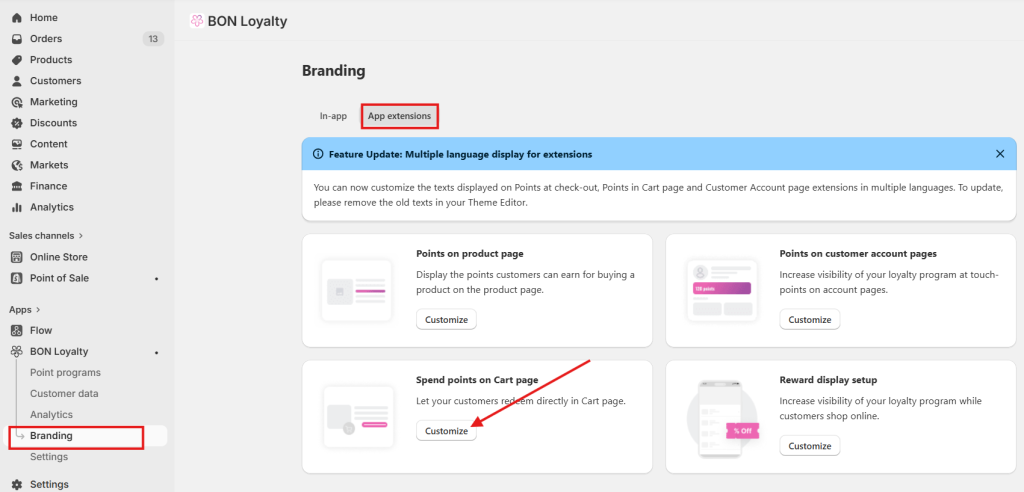
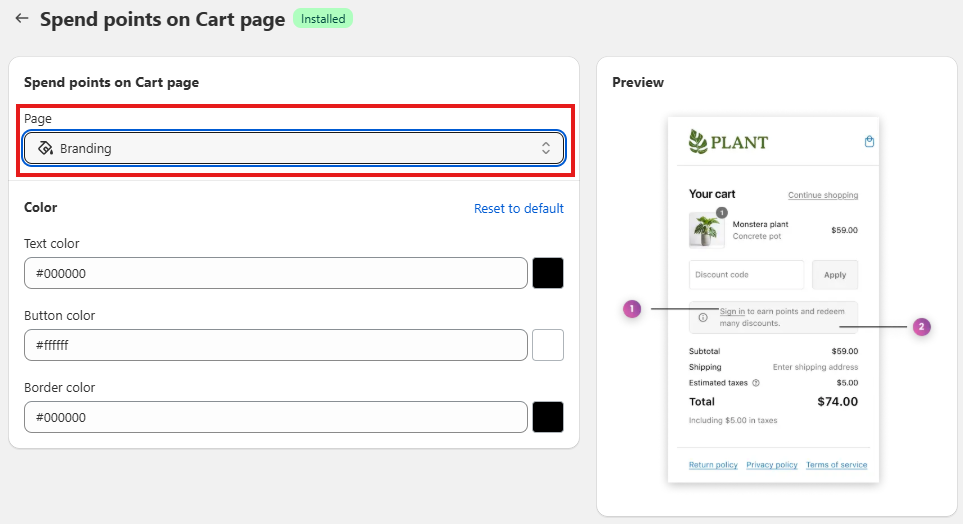
You can adjust the color of text to make it stand out or blend with your design: Go to Branding > App extensions > Spend points on Cart page > Page “Branding”
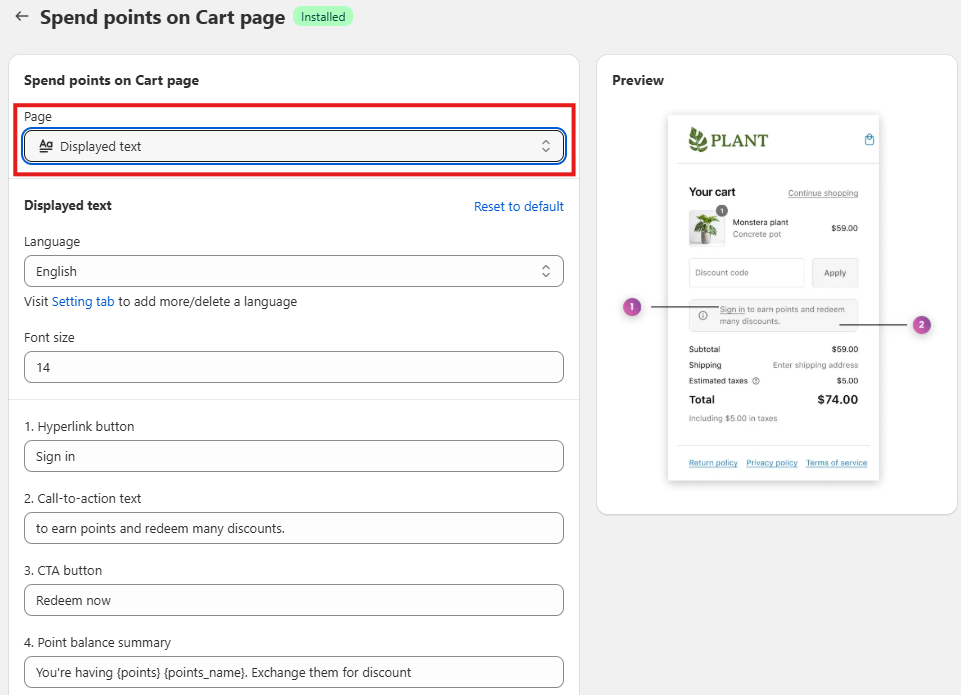
If you want to change the text shown in the extension, switch to the page “Displayed text” and customize the content as you want.
NOTE: While editing, please do not change any attribute in {_}, as they are used to display the dynamic values from BON Loyalty.
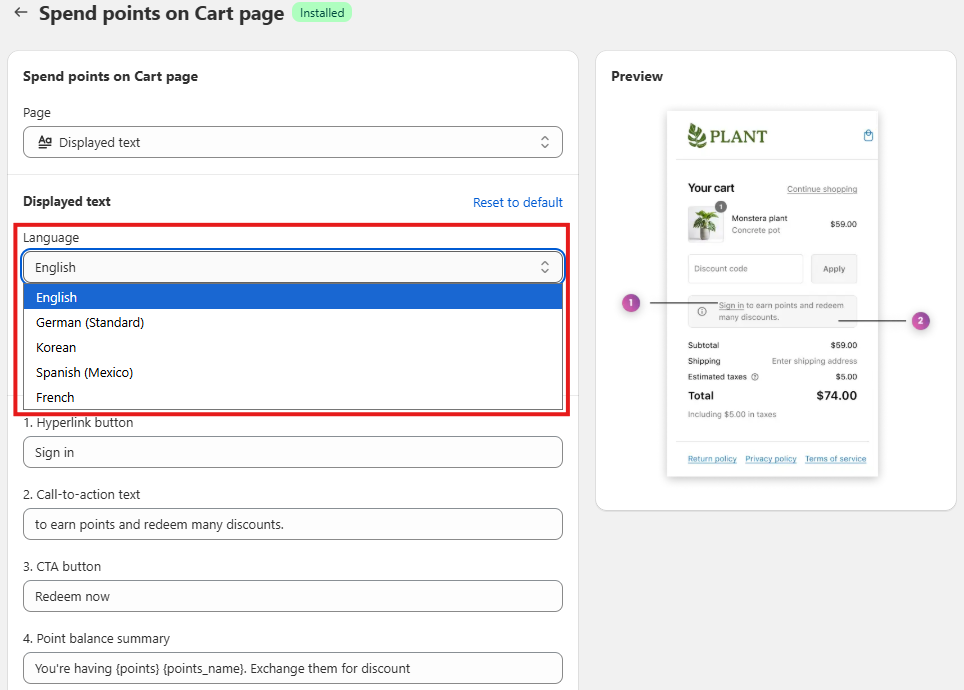
You can also display the extensions in multiple languages to support the customers in different markets.
From the Settings ‘Displayed text’, switch to different language tabs to adjust the translations.
After enabling the feature and customizing the design, ensure that the Cart page functions as expected by testing it thoroughly. Add items to your cart, check the Points on Cart page display, and verify that the points can be redeemed.