Understand how to display your loyalty page (for 2.0 Shopify themes with template section apps)
IMPORTANT NOTE: Displaying the BON loyalty landing page is available from the Basic plan or higher. Check out our Pricing plans for more details.
Introduction
Ready to elevate your customer experience? With BON, you can seamlessly embed a stunning, user-friendly loyalty page directly into your storefront – no coding required! This guide will walk you through setting up your loyalty page so you can start engaging your customers and boosting your brand’s visibility in no time.
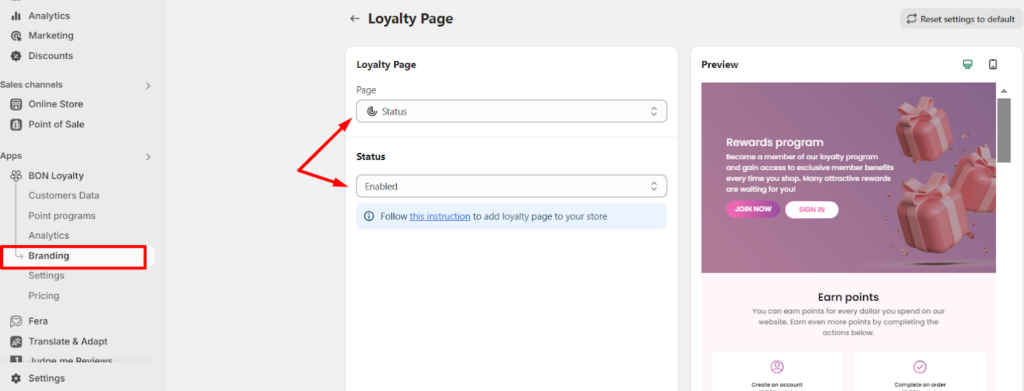
Go to BON Loyalty > Branding > Loyalty page > Status > Enable the Loyalty page.
Display the Loyalty page on your storefront
With the Loyalty page activated, let’s make it visible to your customers!
1. Create a new loyalty page template in your theme:
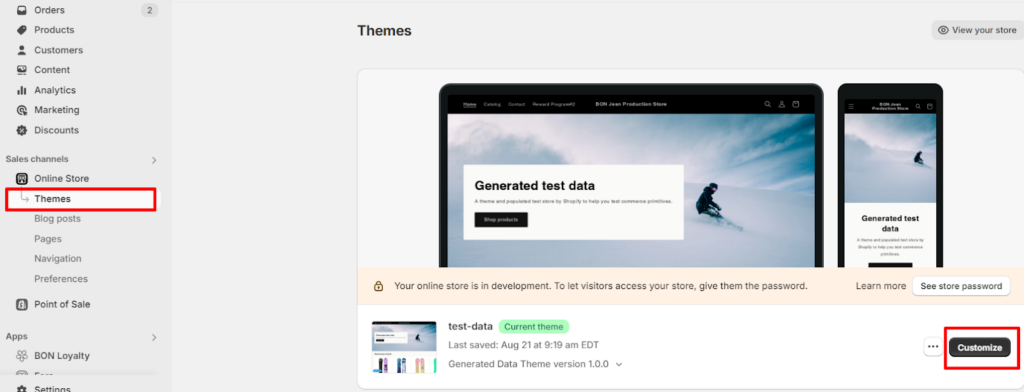
Go to your Shopify admin > Sales channels > Online store > Theme > Click Customize on your live theme, or other themes you want to display the landing page in.
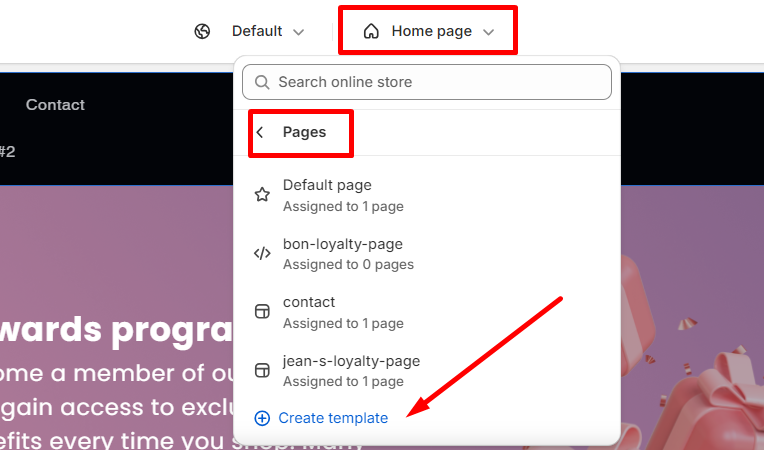
In your theme, click Homepage > Pages > Create template.
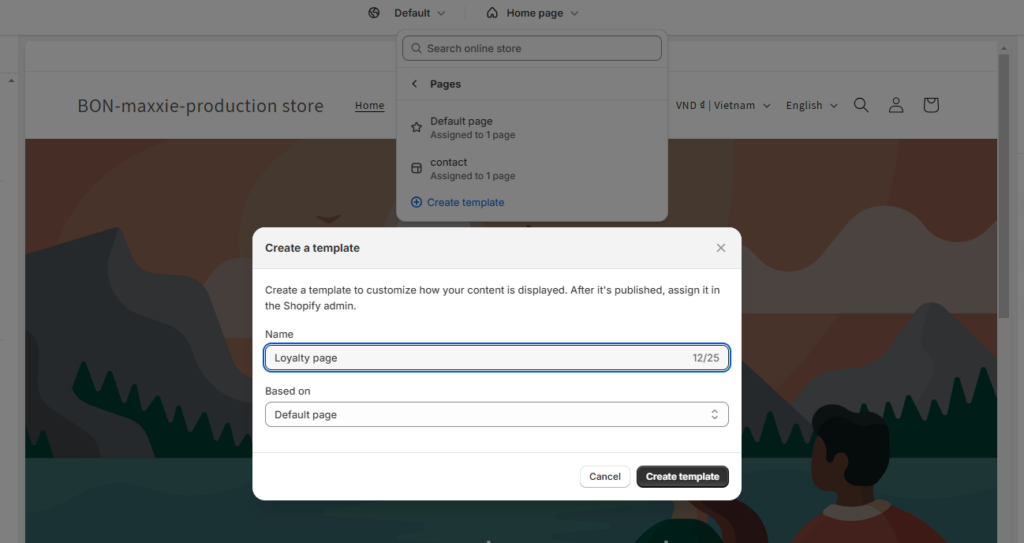
Name your loyalty page template > Select Default page > Click Create template.
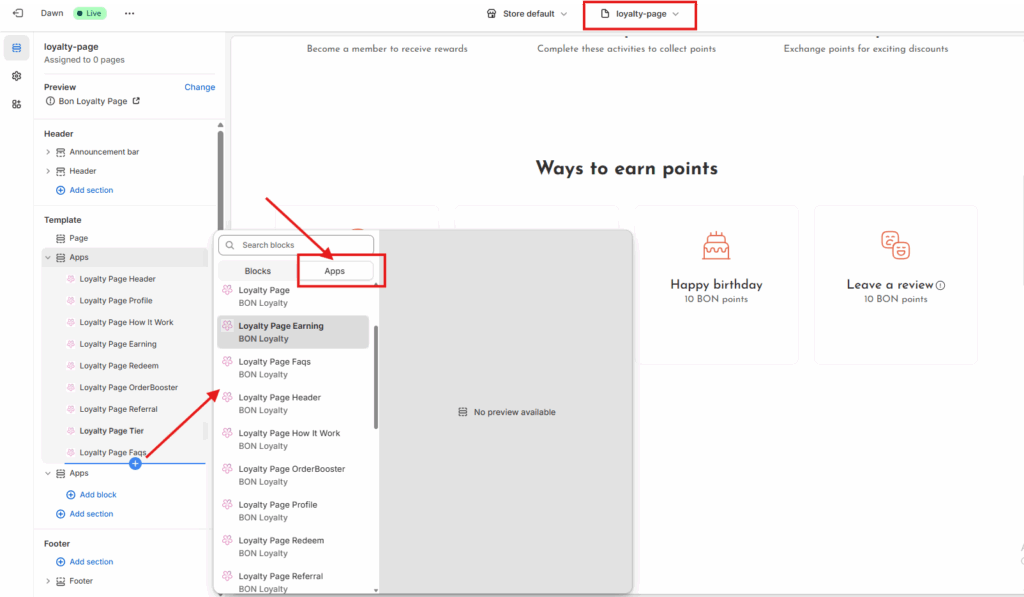
In the newly created template, go to Template > Add block > Apps.
To add the full loyalty page layout > Add ‘Loyalty Page‘
To adjust the order of sections or hide/display specific parts of the loyalty page > Add each section individually. Available sections include: – Header: Displays the banner image of your loyalty program – Profile: Shows the customer’s points and rewards information (visible only after signing in) – How it works: A brief explanation of how the loyalty program works, presented in 3 simple steps – Earning: Lists all the actions customers can take to earn points – Redeeming: Shows all available rewards that customers can redeem with their points – Order booster (*): Highlights the feature that allows customers to earn more points by placing additional orders – Referral: Displays the referral program where customers can invite others and earn rewards – Tier (*): Showcases the VIP Tier program, where customers can unlock exclusive benefits as they progress to higher tiers – FAQs: Displays your custom FAQs related to the loyalty program terms and conditions
Please keep in mind: If your theme doesn’t support adding template section apps, please refer to this loyalty page guide to add the needed code.
IMPORTANT NOTE: The Order booster and VIP Tier features (*) are available from the Growth plan or higher.
2. Add the new template to the Pages section:
Next, you’ll need to assign the newly created template to the Pages you’re currently using in your store.
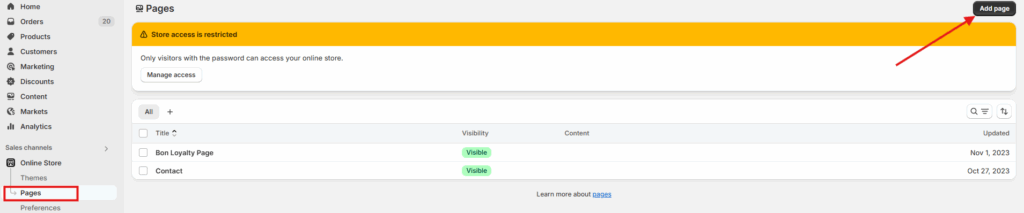
Go to your Shopify admin > Sales channels > Online store > Pages > Add page.
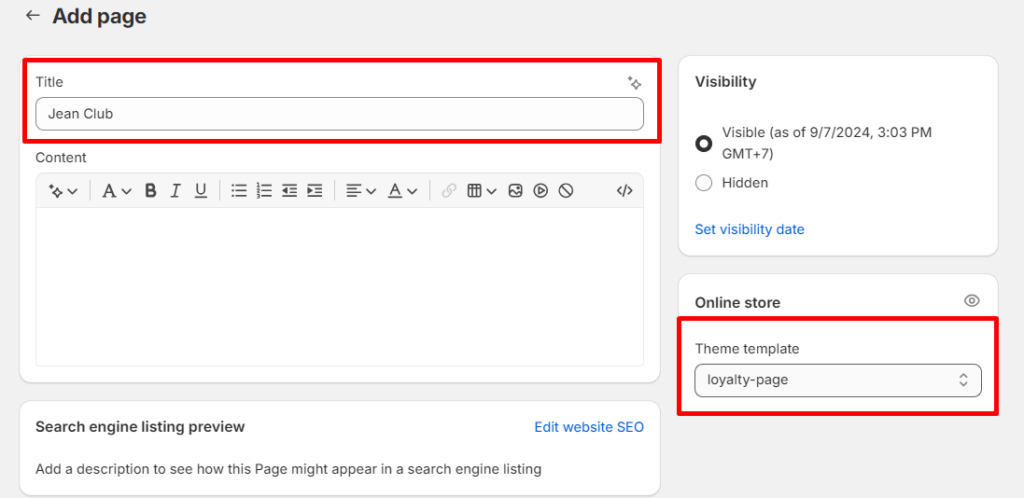
Select the new template you just created in the Theme template section. Name your Loyalty page (e.g., Rewards Program, Loyalty Page).
3. Add the new template to Content > Menus:
Last but not least, put the Loyalty page onto your storefront.
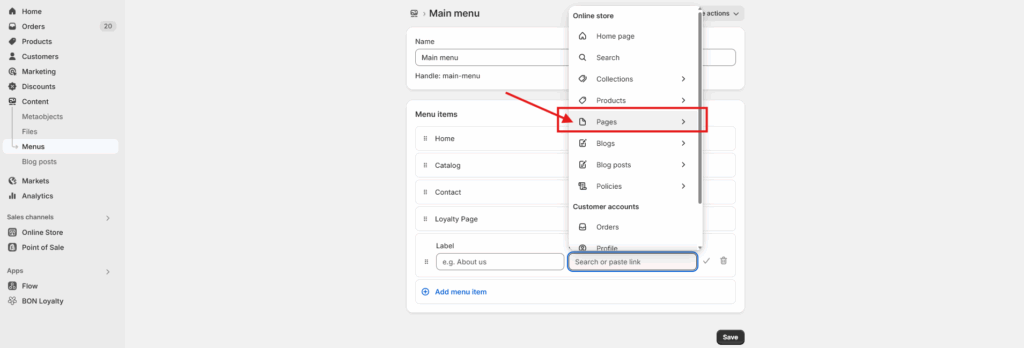
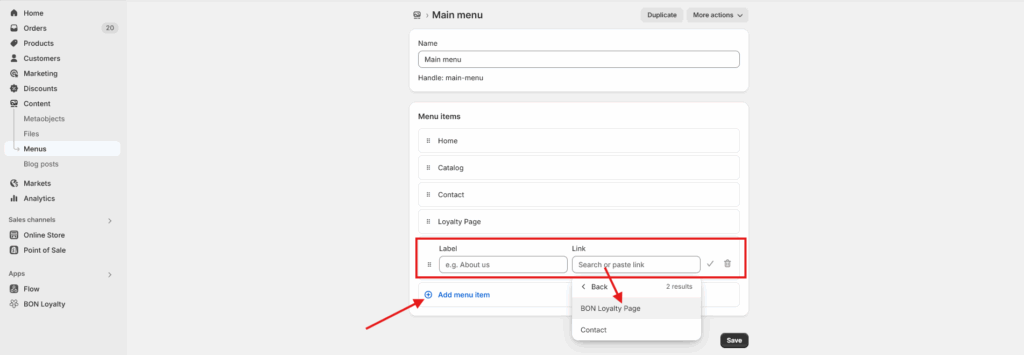
Go to your Shopify admin > Sales channels > Online store > Content > Menu > Choose to display your Loyalty page at either the Main menu (Header) or the Footer menu.
Click on either the Main menu or the Footer menu, then select Add menu item.
Label: Enter a name for the page, such as BON Loyalty.
Link: Choose Pages > Select the Loyalty page you created earlier.
Finally, click Save to apply the changes.
Your Loyalty page is now ready to engage and reward your customers! For a step-by-step visual guide, check out our tutorial video.