Loyalty page display with coding

Loyalty page display with coding

Understand how to display your loyalty page (for non-2.0 Shopify themes without template section apps)

IMPORTANT NOTE: Displaying the BON loyalty landing page is available from the Basic plan or higher. Check out our pricing plans for more details.

Introduction

With a simple coding tweak, you can create a stunning loyalty page that will set you apart from the competition. Don’t miss out on this opportunity to boost customer engagement and drive sales!

Overview

Activate your Loyalty page

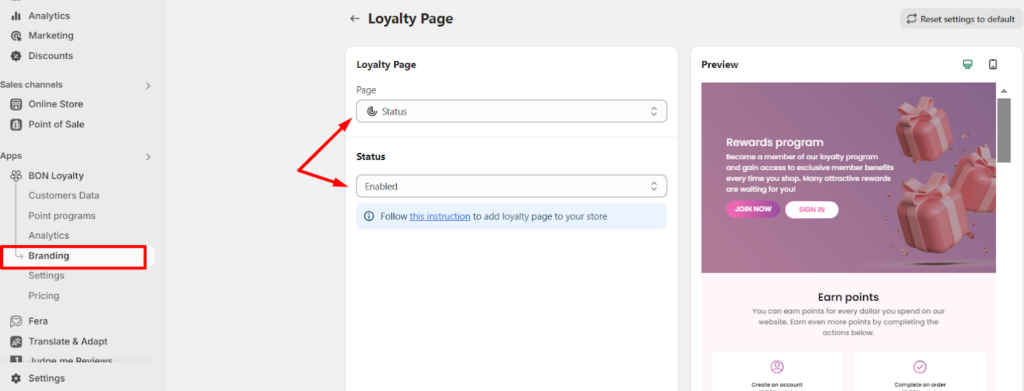
Go to BON Loyalty > Branding > Loyalty page > Status > Enable the Loyalty page.

Enable the Loyalty page

Display the Loyalty page on your storefront

With the Loyalty page activated, let’s make it visible to your customers!

1. Create a new Loyalty page template in your theme:

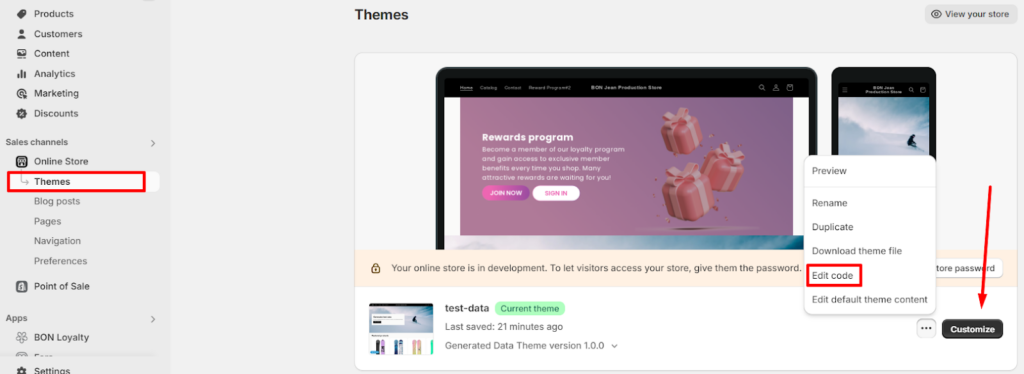
Go to your Shopify admin > Sales channel > Online store > Theme > Click the 3-dot button > Select Edit code.

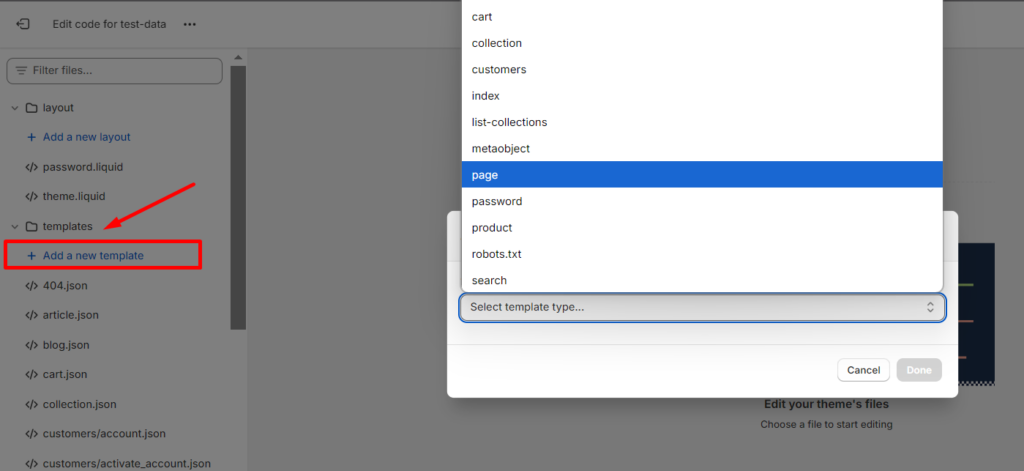
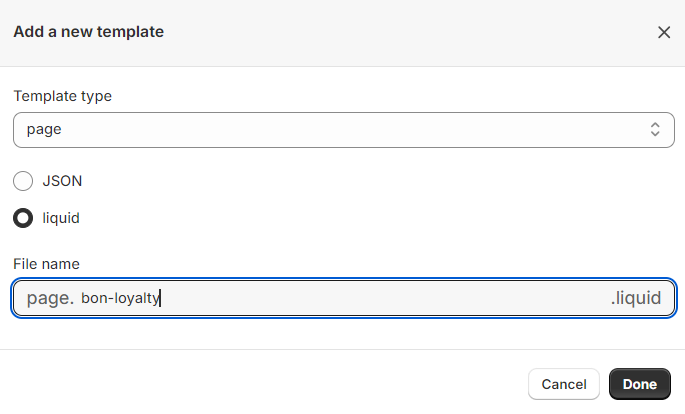
In the Templates folder, click Add a new template > Select Page, then Liquid > Enter a file name (e.g., bon-loyalty) > Click Done.

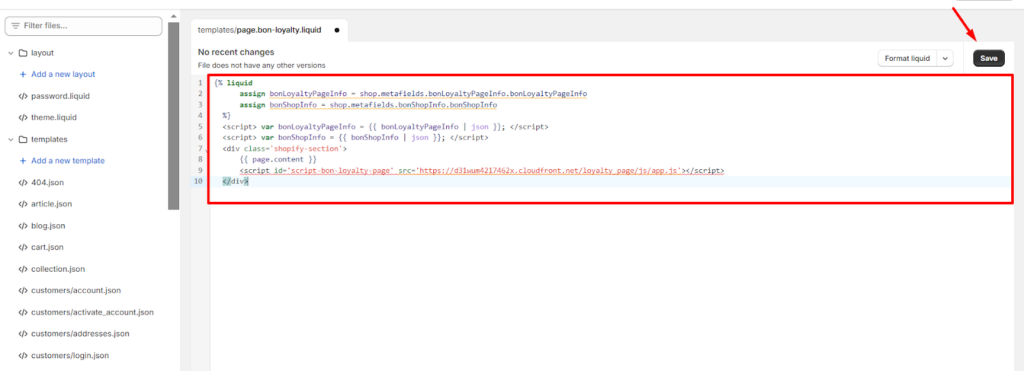
Paste the following code into the template section. Select Format liquid > Click Save.

IMPORTANT NOTE: Avoid editing this code to prevent any display conflicts.

{% liquid
      assign bonLoyaltyPageInfo = shop.metafields.bonLoyaltyPageInfo.bonLoyaltyPageInfo
      assign bonShopInfo = shop.metafields.bonShopInfo.bonShopInfo
  %}
  <script> var bonLoyaltyPageInfo = {{ bonLoyaltyPageInfo | json }}; </script>
  <script> var bonShopInfo = {{ bonShopInfo | json }}; </script>
  <div class='shopify-section'>
      {{ page.content }}
      <script id='script-bon-loyalty-page' src='https://d31wum4217462x.cloudfront.net/loyalty_page/js/app.js'></script>
  </div>
 

2. Add the new template to the Pages section:

Next, you’ll need to assign the newly created template to the Pages you’re currently using in your store.

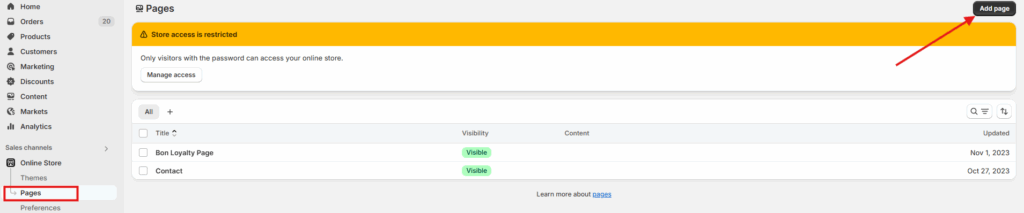
Go to your Shopify admin > Sales channels > Online store > Pages > Add page.

Online store > Pages

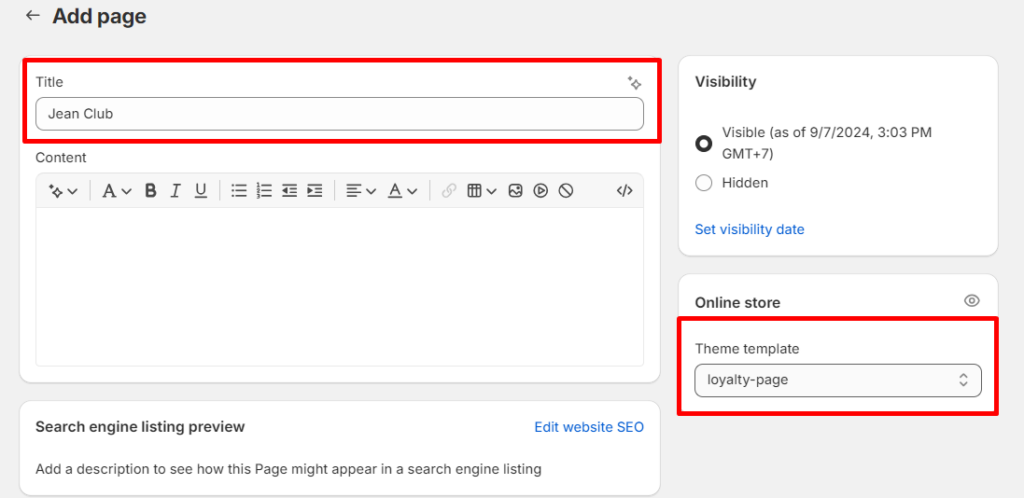
Select the new template you just created in the Theme template section. Name your Loyalty page (e.g., Rewards Program, Loyalty Page).

3. Add the new template to Content > Menus:

Last but not least, put the Loyalty page onto your storefront.

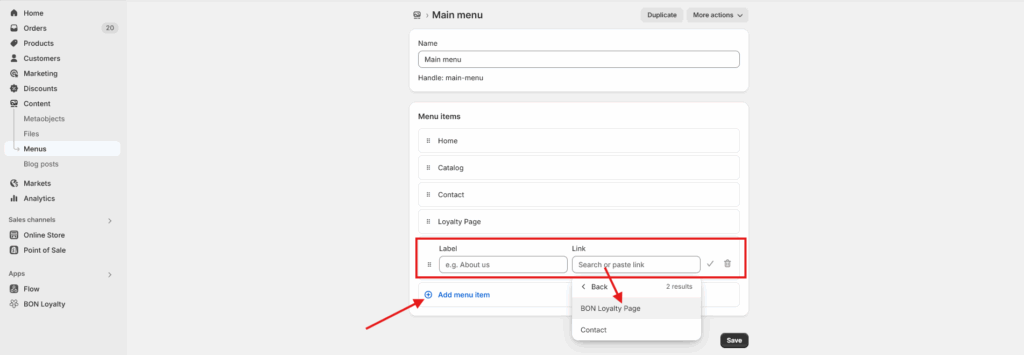
Go to your Shopify admin > Sales channels > Online store > Content Menu > Choose to display your Loyalty page at either the Main menu (Header) or the Footer menu.

Main/Footer menu

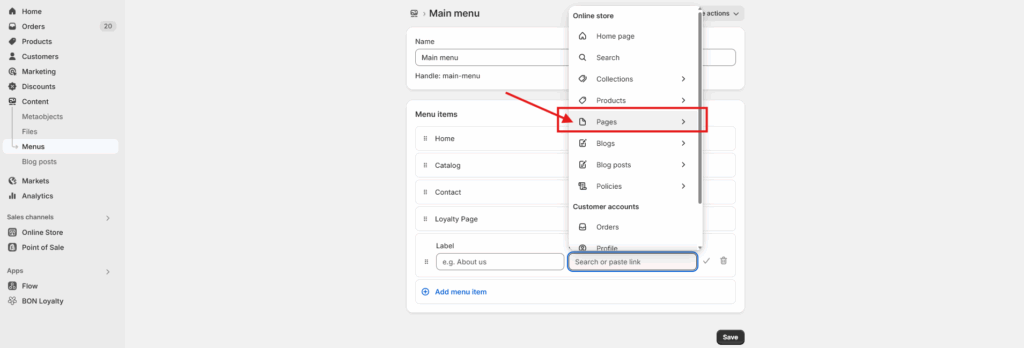
Click on either the Main menu or the Footer menu, then select Add menu item.

  • Label: Enter a name for the page, such as BON Loyalty.

  • Link: Choose Pages > Select the Loyalty page you created earlier.

  • Finally, click Save to apply the changes.

Add menu item
Link > Pages > BON Loyalty Page

Your Loyalty page is now ready to engage and reward your customers!