How to activate and display the widget on your website
Introduction
If you’re new to BON and wondering where to begin, activating the widget is a fantastic first step! This guide will walk you through the process of enabling your loyalty widget on your storefront.
Step 1: Activate the BON widget in Settings
When you install the BON app, an extension will automatically be added to your store theme. To activate the widget, simply follow these steps:
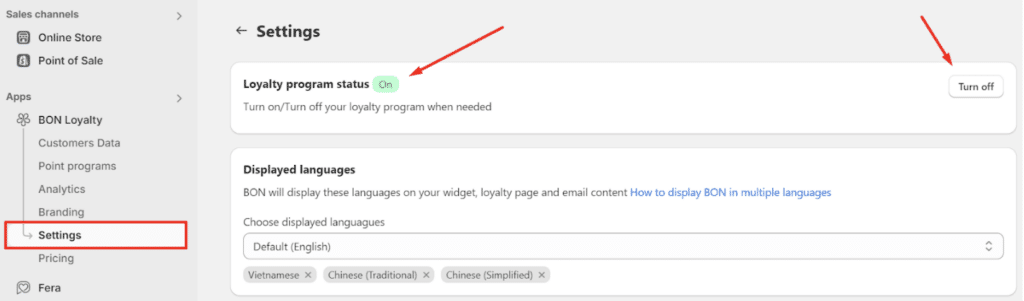
Go to BON Loyalty > Settings
Activatethe Program Status by clicking the switch in the top right corner.
Step 2: Display the BON widget in Store Themes
Next, follow these steps to ensure the widget is visible on your store:
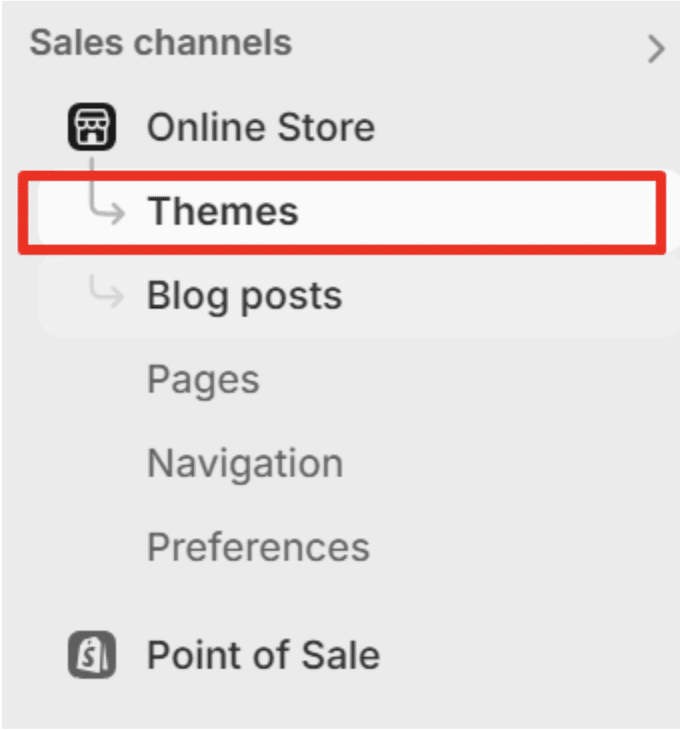
Navigate to your Shopify Settings > Sales Channel > Online Store > Themes
Click the ‘Customize‘ button on your current theme.
In the theme customization section:
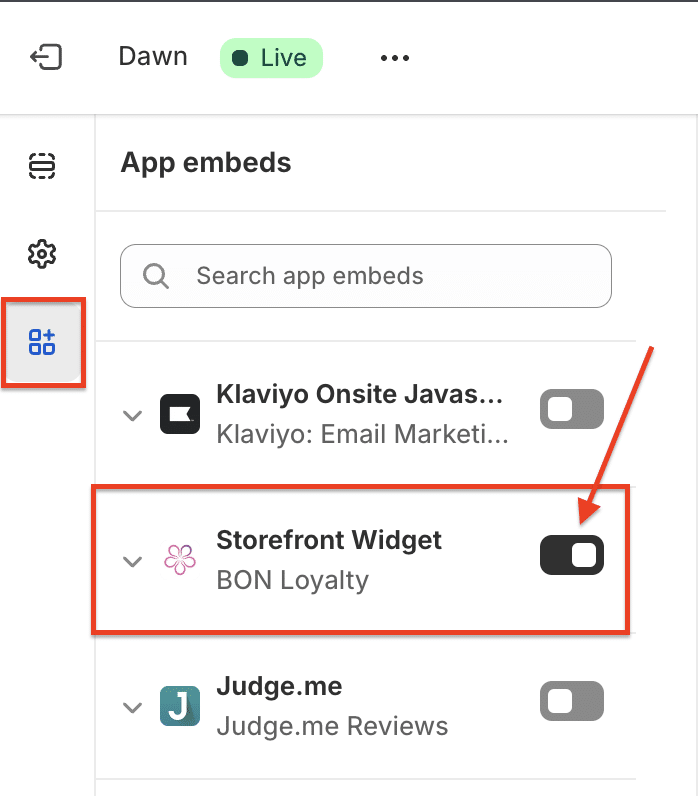
Click on the App Embeds icon
Turn onthe switch to activate the BON widget
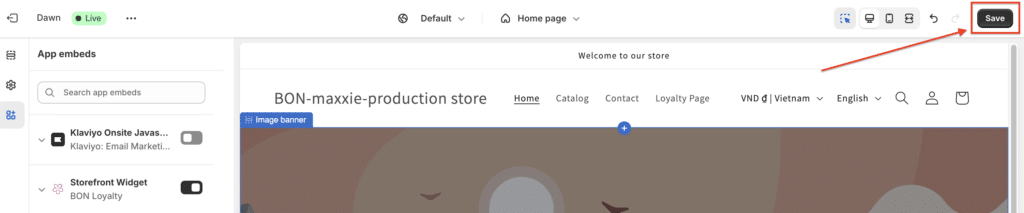
Click ‘Save‘ to complete the process.
NOTE: Already completed the setup but still not seeing the widget? Occasionally, it may take a few minutes for settings to fully update. If it still isn’t appearing, try troubleshooting by turning BON off and on in BON > Settings to refresh the widget display.
If the widget doesn’t show up after waiting and troubleshooting, please feel free to reach out for assistance via our Live Chat—we’re here to help!