Set up delayed points for Completing an Order with Shopify Flow
Simple steps to use Shopify Flow to create a workflow that allows you to reward customers with a fixed amount of points at a set time after purchase, instead of immediately
IMPORTANT NOTE: The default setting in Shopify Flow is designed to work only with the Fixed Amount of Points type. If you want to apply the Incremental Amount of Points type, please follow these steps:
Configure the “Complete an Order” earning action as you normally would in the app.
Once set up, activate the “Complete an Order” earning action so it will display correctly on the loyalty widget or landing page.
Contact BON Support to request adding your store to the list of stores blocking webhooks. This step applies to both the Fixed Amount of Points and Incremental Amount of Points flows. (This step applies to both the Fixed Amount of Points and Incremental Amount of Points flows).
This customization is free of charge for stores on the Basic plan or higher. If your store is currently on the Free plan, additional fees may apply.
Introduction
Rewarding loyalty points is a powerful way to keep customers engaged, but sometimes, timing is everything. Delaying the distribution of points can help ensure customers fulfill certain conditions, such as completing payment or avoiding returns before they benefit from rewards. With BON Loyalty and Shopify Flow, you can seamlessly automate this process.
Understand how Shopify Flow works
Shopify Flows is an app developed by Shopify that enables its users to create actions based on triggered events. You can use Shopify Flow to set up loyalty program events that are tailored to your business.
To use Shopify Flows, you need to define the actions and the conditions under which those actions will occur. For the conditions, you’ll need to add attributes—data that Shopify will send to your flows—to ensure that the flow you’ve set up operates accurately.
Set up a workflow for delayed points
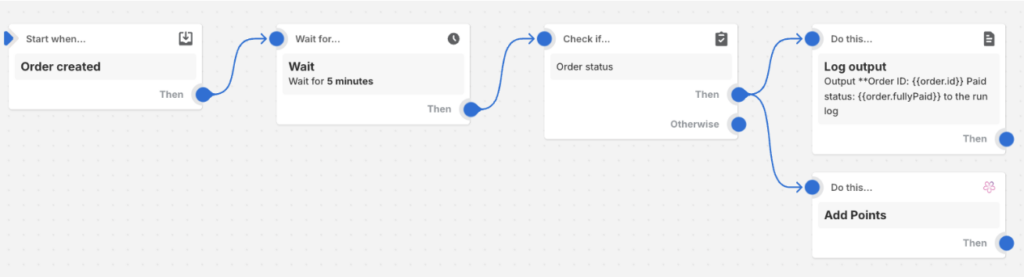
To set up an automated workflow that rewards your customers with points for completing orders after a certain amount of time, let’s start with the starting conditions:
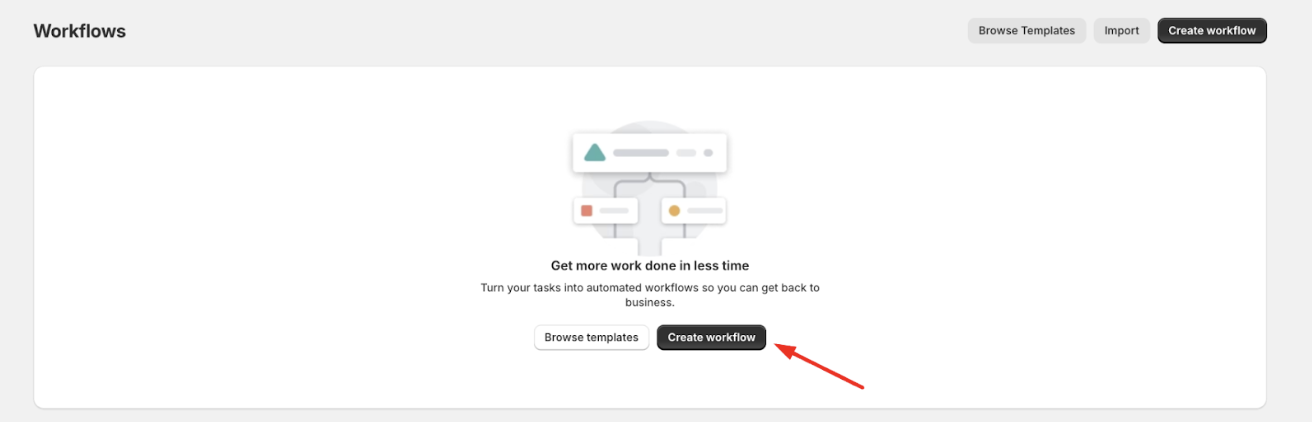
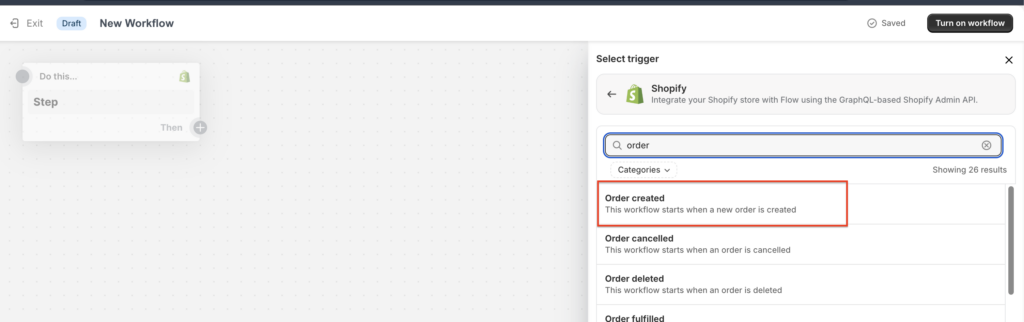
1. Open ‘Shopify Flow‘ > Create workflow > Select a trigger > Choose ‘Shopify‘ app
2. Select the action ‘Order created’ to mark the beginning action for your flow
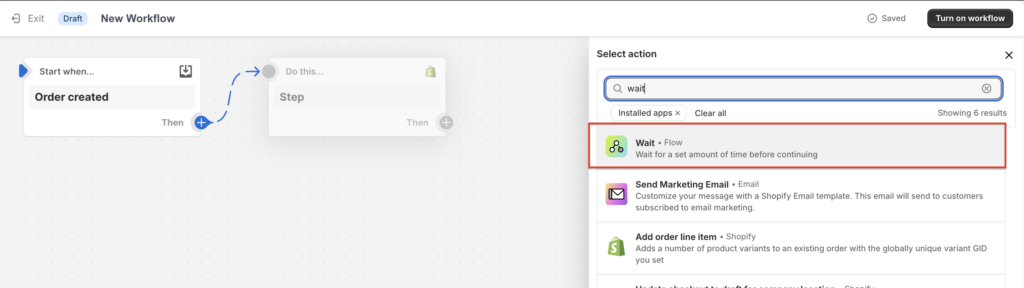
3. Click ‘Then’ > Select ‘Action > Choose the action ‘Wait’ for the next step
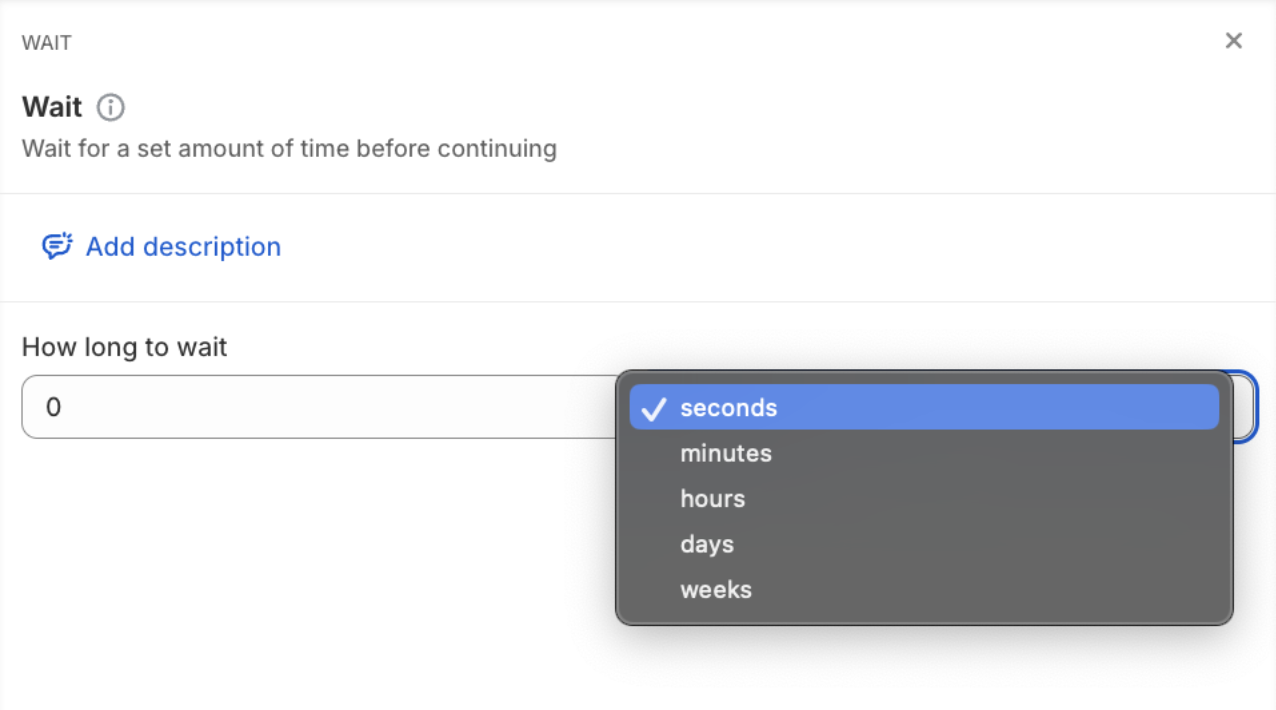
4. Type in the amount of time you want the point rewarding action to be delayed
You have done it halfway through! Now, we need to set up the condition for the order to be valid. In this case, we will select the order status as the criteria for Shopify Flow to assess if the order is valid for receiving points.
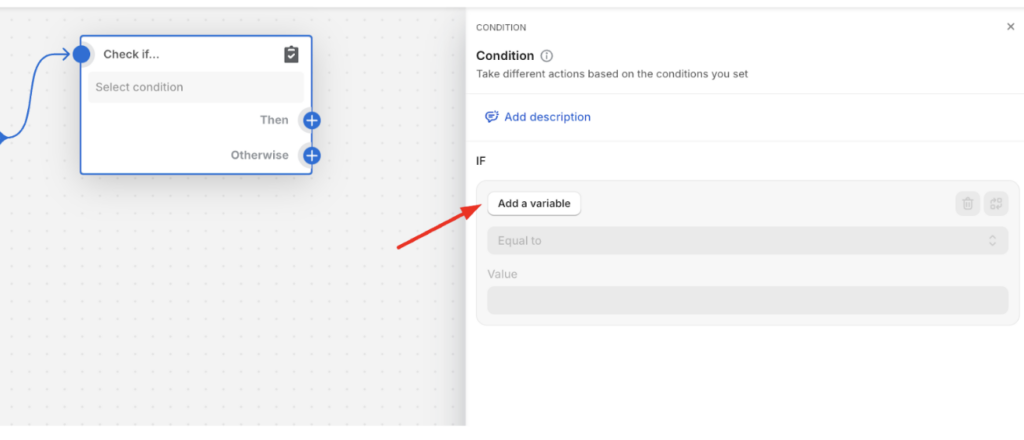
5. Select ‘Condition‘ > Add a variable > Order
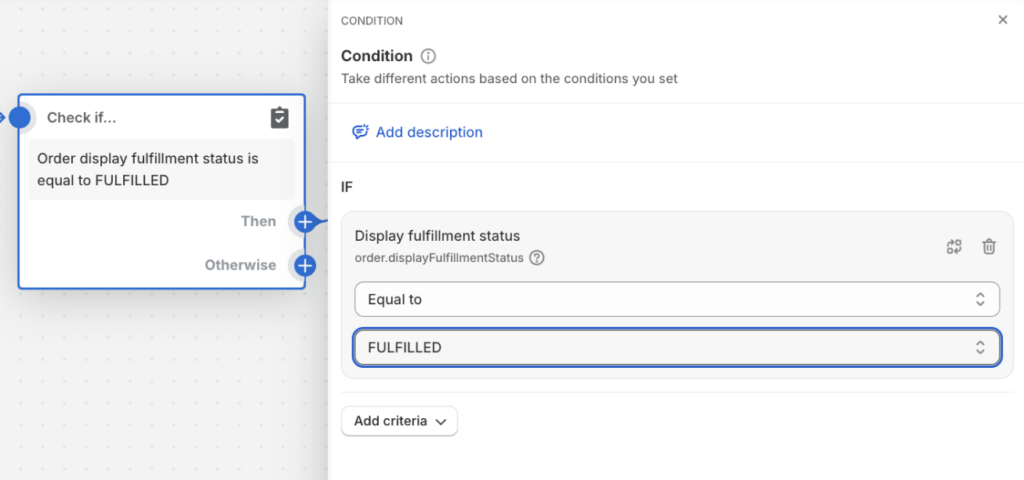
6. In the Order tab > Choose ‘Display fulfillment status‘ > Equal to > ‘FULFILLED’
This means BON will receive data from Shopify once the order status is fulfilled. Then, points will be rewarded after the pre-set amount of time.
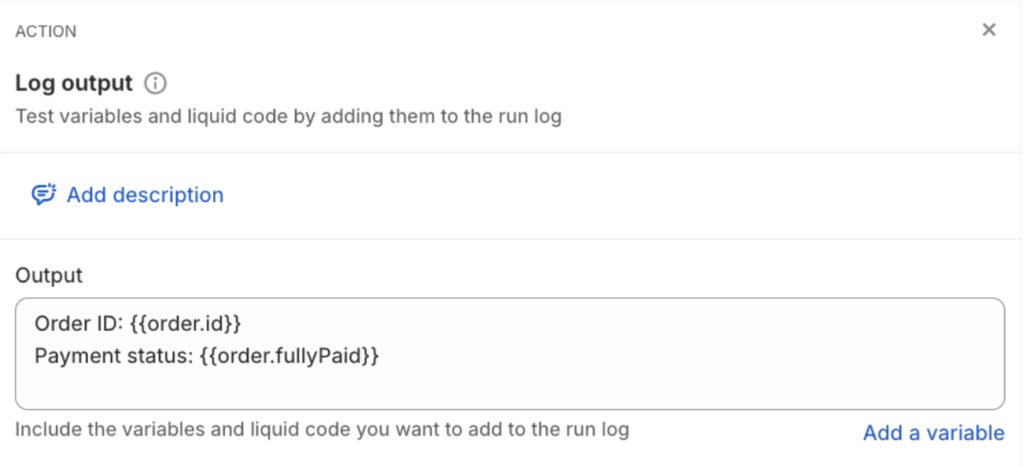
7. Once the condition is set, we will move on to deciding the next action. After the order has passed the requirement, BON will need to check 2 data fields:
– Customer ID – Payment Status
So click ‘Then‘ > Action > Search for ‘Log output’. Input these 2 outputs: Order ID: {{order.id}} and Payment status: {{order.fullyPaid}} as shown in the image below.
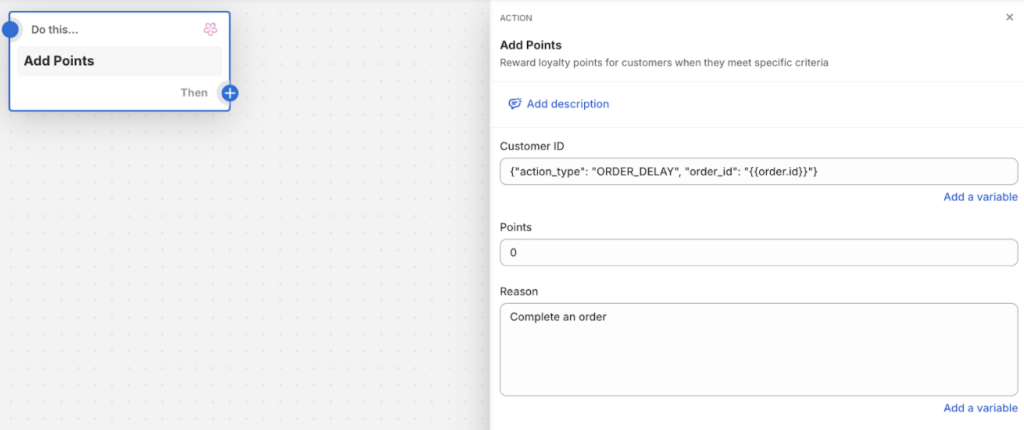
8. Click ‘Then‘ > Action > BON Loyalty > Add points > Input {“action_type”: “ORDER_DELAY”, “order_id”: “{{order.id}}”} into the Customer ID section > Enter the fixed number of points customers will receive once they complete their orders > Input the reason that will be displayed for this action