Loyalty page display with coding #2

Loyalty page display with coding

Understand how to display your loyalty page (for Shopify themes without template section apps)

Introduction

With a simple coding tweak, you can create a stunning loyalty page that will set you apart from the competition. Don’t miss out on this opportunity to boost customer engagement and drive sales!

IMPORTANT NOTE: Displaying the BON loyalty landing page is available from the Basic plan or higher. Check out our pricing plans for more information!

Activate your Loyalty page

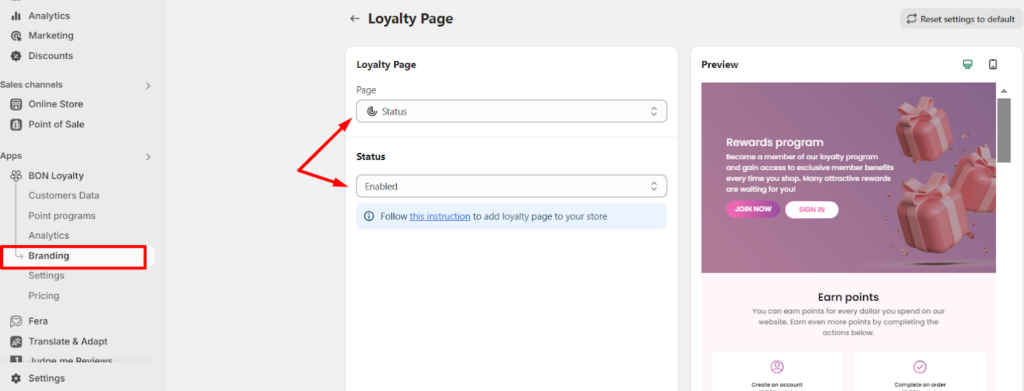
Go to BON Loyalty > Branding > Loyalty page > Status > Enable the Loyalty page.

Enable the Loyalty page

Display the Loyalty page on your storefront

With the Loyalty page activated, let’s make it visible to your customers!

1. Create a new Loyalty page template in your theme:

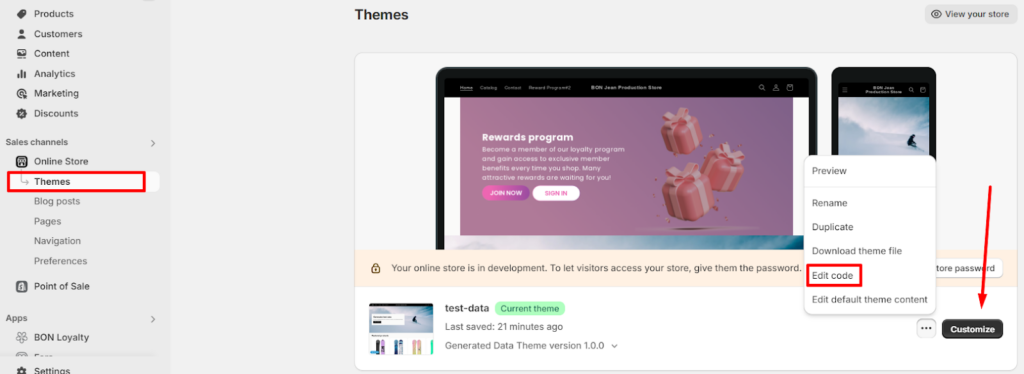
Go to your Shopify admin > Sales channel > Online store > Theme > Click the 3-dot button > Select Edit code.

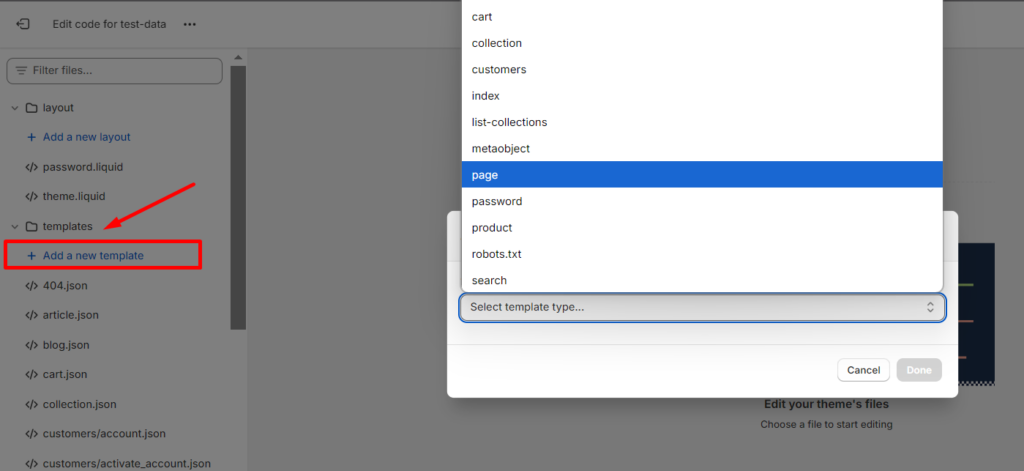
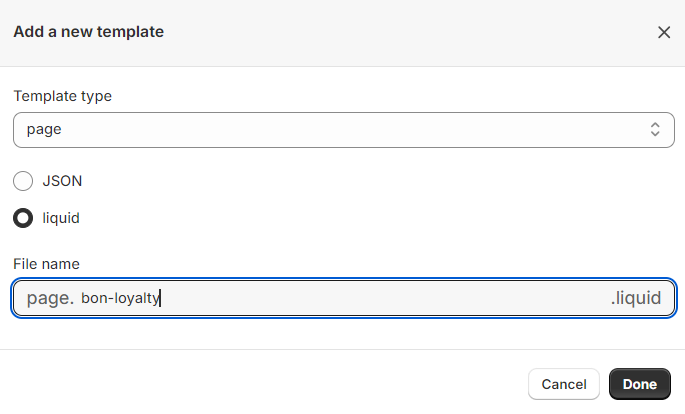
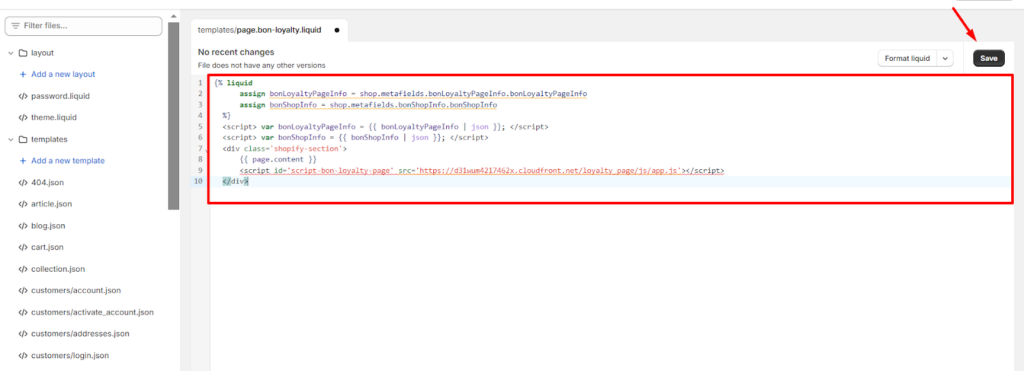
In the Templates folder, click Add a new template > Select Page, then Liquid > Enter a file name (e.g., bon-loyalty) > Click Done.

Paste the following code into the template section. Select Format liquid > Click Save.

IMPORTANT NOTE: Avoid editing this code to prevent any display conflicts.

{% liquid
      assign bonLoyaltyPageInfo = shop.metafields.bonLoyaltyPageInfo.bonLoyaltyPageInfo
      assign bonShopInfo = shop.metafields.bonShopInfo.bonShopInfo
  %}
  <script> var bonLoyaltyPageInfo = {{ bonLoyaltyPageInfo | json }}; </script>
  <script> var bonShopInfo = {{ bonShopInfo | json }}; </script>
  <div class='shopify-section'>
      {{ page.content }}
      <script id='script-bon-loyalty-page' src='https://d31wum4217462x.cloudfront.net/loyalty_page/js/app.js'></script>
  </div>
 

2. Add the new template to the Pages section:

Next, you’ll need to assign the newly created template to the Pages you’re currently using in your store.

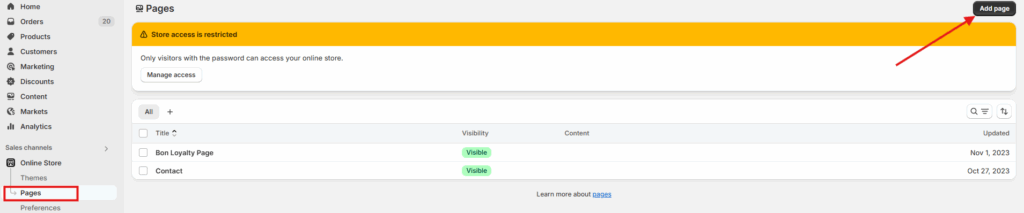
Go to your Shopify admin > Sales channels > Online store > Pages > Add page.

Online store > Pages

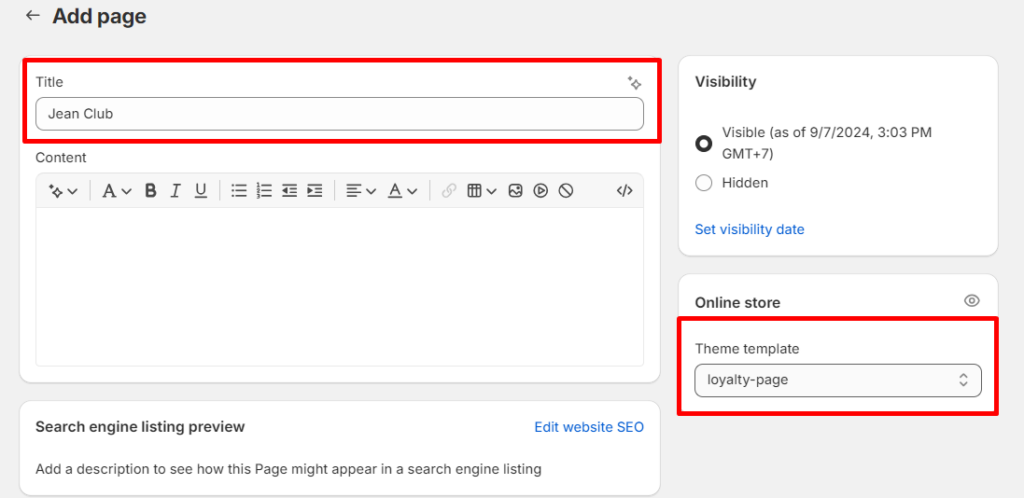
Select the new template you just created in the Theme template section. Name your Loyalty page (e.g., Rewards Program, Loyalty Page).

3. Add the new template to Content > Menus:

Last but not least, put the Loyalty page onto your storefront.

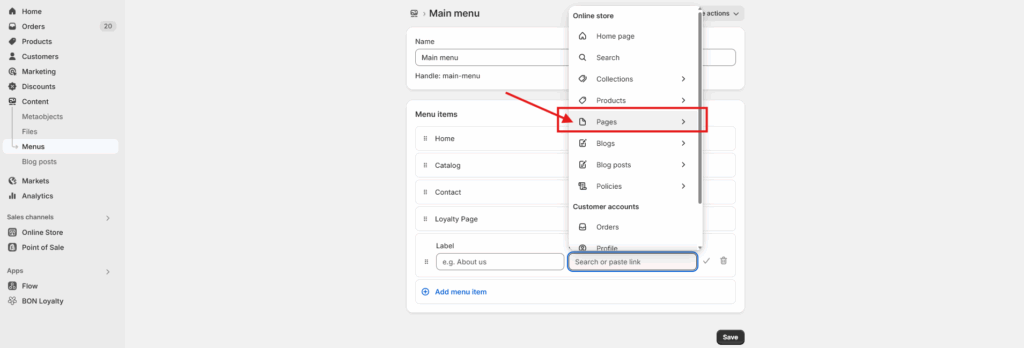
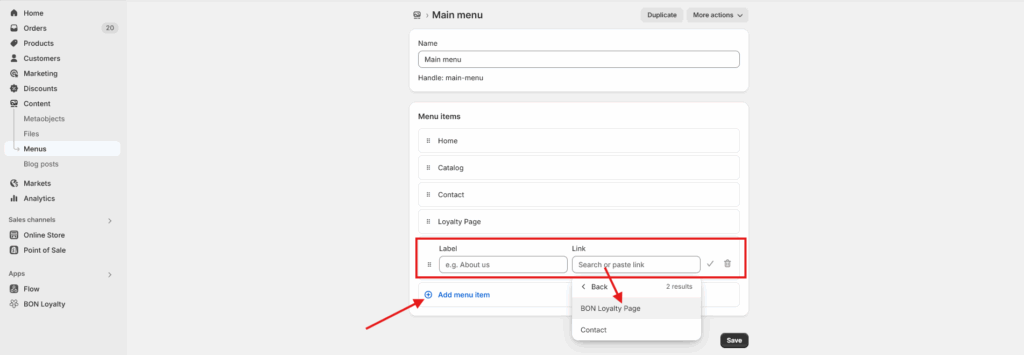
Go to your Shopify admin > Sales channels > Online store > Content Menu > Choose to display your Loyalty page at either the Main menu (Header) or the Footer menu.

Main/Footer menu

Click on either the Main menu or the Footer menu, then select Add menu item.

  • Label: Enter a name for the page, such as BON Loyalty.

  • Link: Choose Pages > Select the Loyalty page you created earlier.

  • Finally, click Save to apply the changes.

Add menu item
Link > Pages > BON Loyalty Page

Your Loyalty page is now ready to engage and reward your customers!

Was this guide helpful?