Build a customer profile with the ‘Complete Profile’ point-earning action
How to set up the ‘Complete Profile’ point-earning action for your store
Introduction
This guide will walk you through the steps to set up the Complete Profile action, helping you build a detailed customer profile with ease.
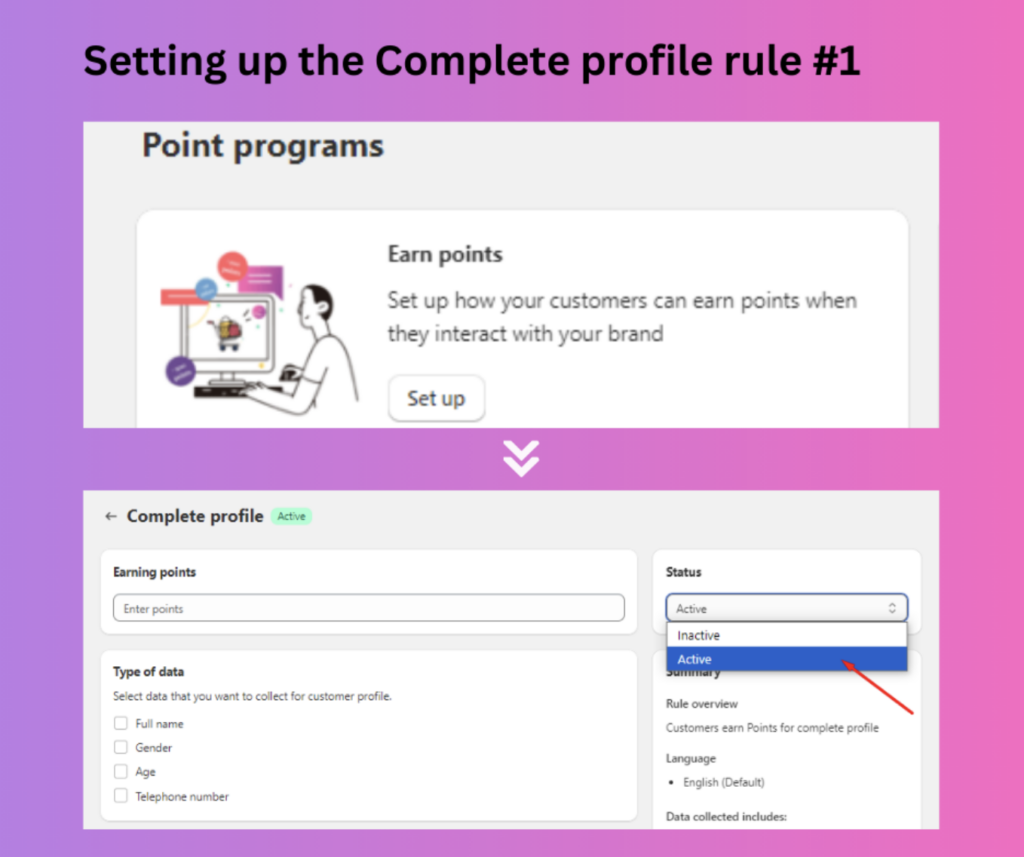
Step 1: Go to Points program > Earn points > Complete profile to activate this action
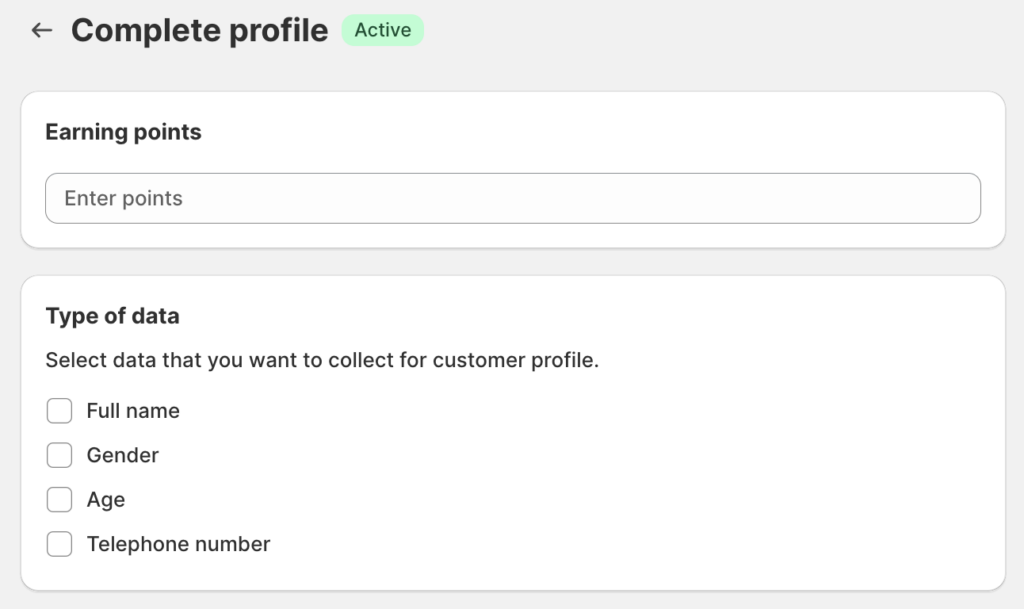
Step 2: Enter the reward value and select the type of data
Enter a point amount that customers will receive once they complete this action. Then, select the type of data that you want to collect for the customer profile.
IMPORTANT NOTE:Please carefully consider the type of data you want your customers to provide, because this action can be done once only. After completing the action, customers will not be able to edit the information that they have inputted.
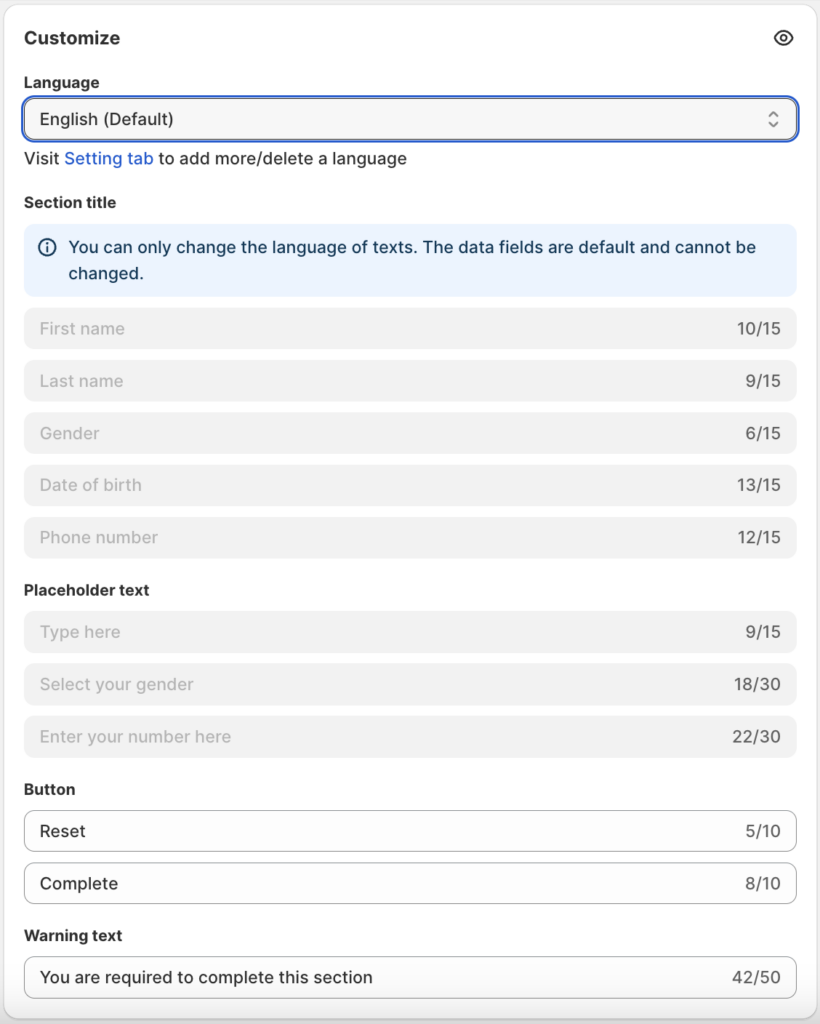
Step 3: Customize the displayed text on the Complete Profile form
Once this point-earning action is activated, customers will need to fill out a form and submit it to save their data. You can edit the content on this form to match your brand voice or translate it into your own language.
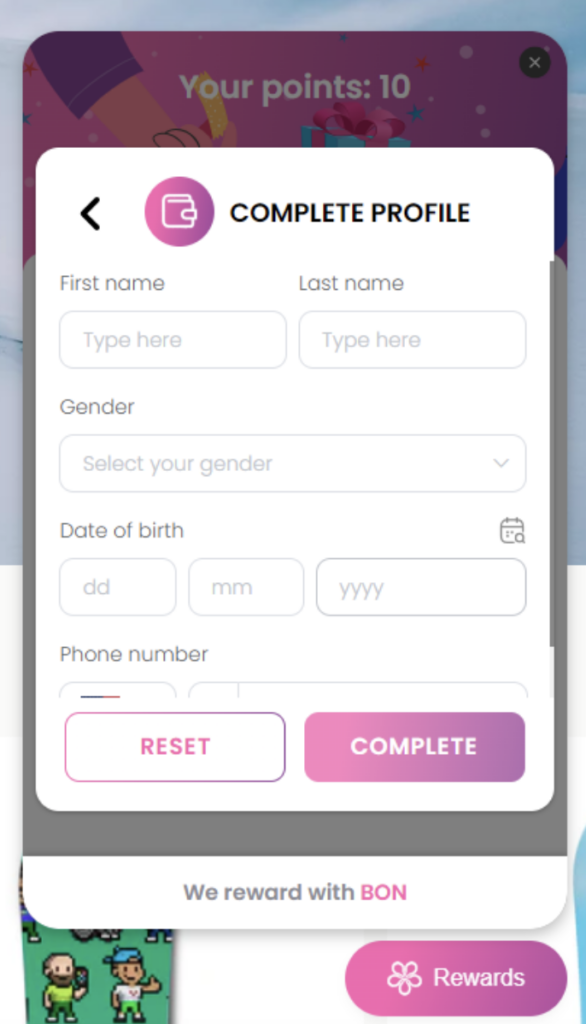
How the form looks on your storefront
Once your settings are all set, the Complete profile rule will look like this on your storefront: